
How to Choose a Timeframe for Your Trading Bot in GT App
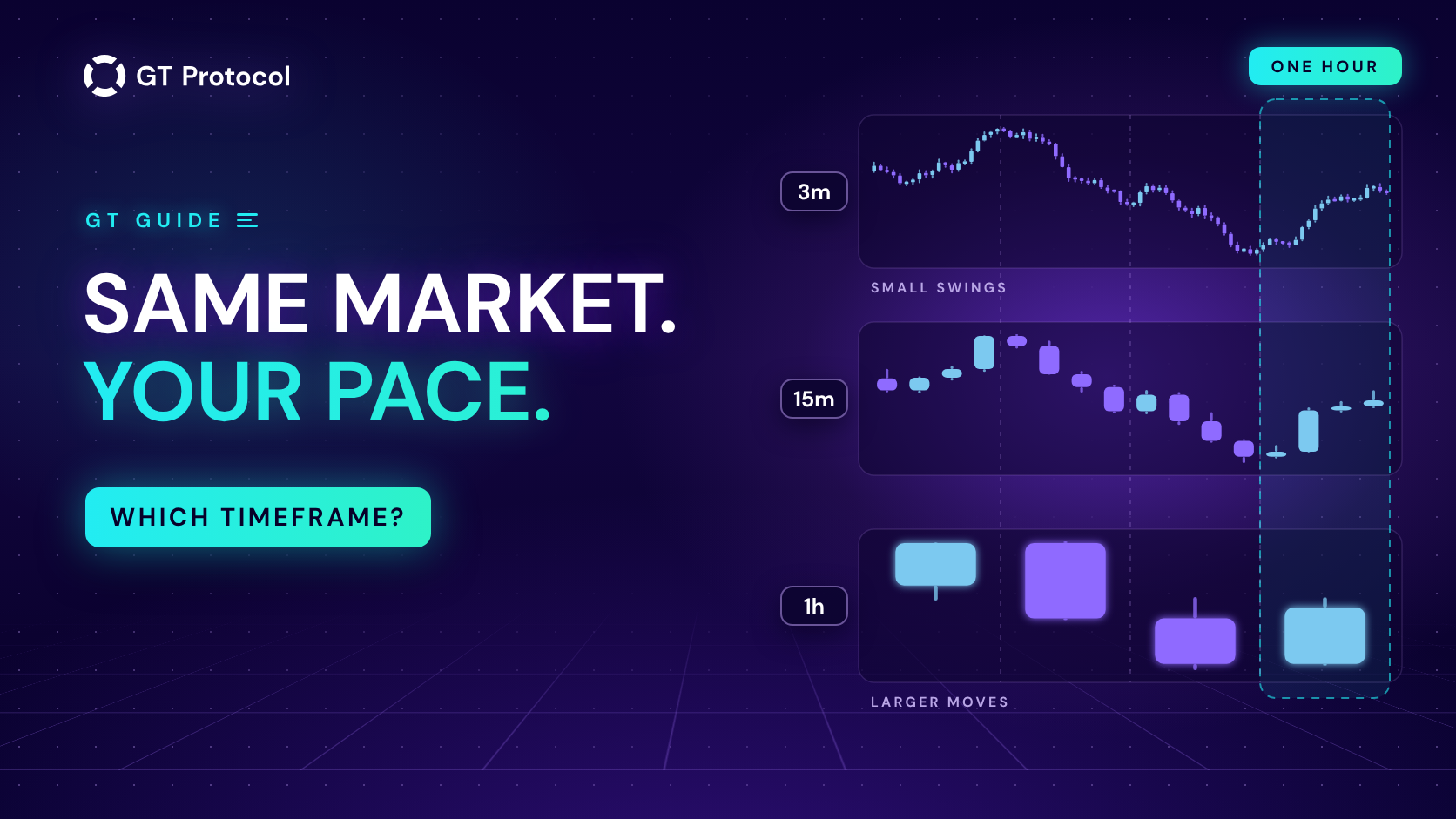
The timeframe is the size of the candles a GT App strategy reads, from 1 minute to 1 day. It decides how often the entry signal can fire, how large a move it reacts to and how long you wait between deals. You set it for each strategy and can change it at any time.
This guide shows where the setting lives, which entries use it, what to adjust along with it and how to test a choice before real money. It describes the app as of October 2026 and doesn’t tell you which timeframe to trade.
Table of contents
- What is a timeframe in a trading bot?
- Where do you set the timeframe in GT App?
- Which entries use the timeframe?
- What changes with faster or slower candles?
- How do you fit take profit, safety orders and stop loss to it?
- Why does Trend Changer have its own timeframe?
- How do you test a timeframe before trading?
- What mistakes should you avoid?
- Frequently asked questions
What is a timeframe in a trading bot?
A price chart is drawn in candles. Each candle sums up a fixed stretch of trading: where the price opened, how high and how low it went and where it closed. The timeframe is the length of that stretch. On 1m one candle is one minute of trading, on 4h it is four hours, on 1d a whole day.
A strategy with a signal entry doesn’t react to every tick. It reads candles of your timeframe and opens a deal when its rule is met; Bollinger Bands, for example, judges closed candles only, so a dip that recovers within the same candle never counts. The same hour of trading is sixty candles on 1m and a single candle on 1h, and a swing that looks like a whole trend on 5-minute candles can be a small wiggle on a 4-hour chart. That is why the timeframe shapes a strategy more than almost any other setting.
GT App offers twelve timeframes: 1m, 3m, 5m, 15m, 30m, 1h, 2h, 4h, 6h, 8h, 12h and 1d. Hyperliquid has no 6-hour candles, so strategies there choose from the other eleven.
Where do you set the timeframe in GT App?
The field sits next to the entry, and each screen names it differently and starts it at a different value:
| Screen | Field | Starts at |
|---|---|---|
| Create Strategy | Timeframe | 3m |
| Full strategy form | Klines | 1m |
| Strategy screen | Klines | Your value |
- In Create Strategy, choose the exchange and the pair, then the Timeframe. The hint next to it says it in one line: “Candle size the signal is computed on.” The backtest reruns by itself on the new candles, so you see at once how the change plays out on your history. If you switch the exchange to Hyperliquid while 6h is chosen, the builder moves the strategy to 4h, the nearest shorter timeframe it has there.
- In the full strategy form (Create Spot Strategy on My Strategies, or Advanced settings in the builder), go to Trading signals and pick Automated trading signal, which is the Bollinger Bands entry, or KDJ trading signals. The Klines field appears right under your choice. The other entries don’t show it, because they don’t use it.
- In a strategy that already runs, open its screen, change Klines in Strategy settings and press Save Settings. The new timeframe applies from the next deal; a deal that is already open carries on as it is.
The two creation screens start at different values, 3m in the builder and 1m in the full form. Look at the field before you save rather than assume which one you got.
Which entries use the timeframe?
Only the two indicator entries read candles of your timeframe. The others take their timing from somewhere else:
| Entry | Timeframe | Timing |
|---|---|---|
| Automated trading signal (Bollinger Bands) | Yes | A close back inside the bands on your candles |
| KDJ trading signals | Yes | A KDJ cross on your candles |
| Dip entry | No | A drop over its own Window: 1, 4, 12 or 24 hours |
| Trading view signals | No | The alert you set up in TradingView |
| Manual start | No | Your Start Deal button |
| Immediate start | No | Right after launch and after every deal |
In Create Strategy the entry is Bollinger Bands or KDJ, so there the timeframe always matters. In the full form, the bottom four entries open deals the same way whatever the Klines value: Dip entry measures its drop over the Window you choose, a TradingView alert fires on the chart and timeframe you set it up on, and Immediate start doesn’t wait for a signal at all.
What changes with faster or slower candles?
Think of the timeframe as the pace of a strategy. The rule of the entry stays the same; what changes is how much market fits into each candle.
| Faster candles | Slower candles | |
|---|---|---|
| You get | More signals, quick reactions | Fewer false starts, room for larger moves |
| You give up | More noise, more false starts | Longer waits, later reactions |
| Fits with | A closer take profit | A further take profit |
- More signals don’t mean more profit. Fast candles catch every small swing, including the ones that reverse a minute later. Each of those can open a deal that then has to work its way back.
- Slower isn’t automatically safer. A deal opened on 4-hour candles can still move against you. What limits the damage is the safety-order ladder, the leverage and the stop loss, not the size of the candles.
- The wait is part of the deal. On 1-hour candles and above, days can pass between deals, and with a take profit sized for larger moves the deals themselves stay open longer. How to Use Bollinger Bands on a Trading Bot in GT App shows how the wait grows from 1m to 4h for the default entry.
No timeframe suits every coin and every market: a pace that fits a calm month can feel slow in a busy one. That is why testing matters as much as the choice itself.
How do you fit take profit, safety orders and stop loss to it?
The timeframe decides how big a move opens a deal. Everything that manages the deal after that should be sized for moves of the same scale, so when you change the timeframe, look at these three settings again instead of keeping the numbers you had:
- Take profit. On fast candles, a target far beyond the swings the entry reacts to can leave a deal open long after the move that started it is over. On slow candles, a tiny target means long waits for small closes. The app builds trading fees into the target, so the price has to cover your percentage plus fees, and on a very small target the fees are a large part of the move. How to Set Take Profit on a Trading Bot in GT App covers the rest.
- Safety orders. The price deviation step decides how far apart the ladder sits. If the steps are much tighter than the swings your timeframe trades, one ordinary swing can fill the whole ladder; if they are much wider, the safety orders rarely come into play. Safety Orders: How to Set Your First DCA Levels Correctly walks through the ladder.
- Stop loss. The stop has to sit beyond the last safety order, and Create Strategy tells you if it doesn’t. Deals on slow candles usually stay open longer, which gives the price more time to wander, so a stop set very close gets touched more often. Stop Loss explains the options.
A quick check that the pieces fit: watch the entry and exit marks on the Create Strategy chart. If deals stay open for long stretches while the price swings around without reaching the target, the target is too far for the pace.
Why does Trend Changer have its own timeframe?
Trend Changer watches KDJ reversals and reacts when one goes against your strategy’s direction. Depending on the mode, it notifies you, switches the direction of new deals, or switches and closes the open deal. It reads candles of its own timeframe, separate from the entry’s:
- In Create Strategy, the field is KDJ Timeframe, and it starts at your strategy’s timeframe. Its hint explains the idea: “This lets the bias follow higher timeframe momentum while entries remain on your trading timeframe.”
- In the full form, it is the Klines field inside the Trend changer block. The list goes further than for entries there, up to 3d, 1w and 1M.
A common setup follows that hint: entries on faster candles, Trend Changer on slower ones, so the direction turns only when a larger move does. Faster Trend Changer candles mean more reversals, and in a market that moves sideways many of them aren’t real turns. Compare a couple of KDJ Timeframe values in Create Strategy before you let it act on your trades.
One thing to check in your own strategies: in the full form, new strategies start with Trend changer switched on, in Notification mode, on 1m candles. In that mode it never touches your trades, but on 1-minute candles reversals are frequent, so the alerts can come several times a day. If they are more noise than help, pick a longer timeframe under Klines in the Trend changer block or switch it off. Changes to Trend Changer apply right away, including to a deal that is already open.
New in GT App: Macro Trend Changer Reads Bitcoin’s Trend covers the other trend setting. It has no timeframe to set: it follows the confirmed big trend of bitcoin, whatever candles your strategy trades.
How do you test a timeframe before trading?
A timeframe is easy to test, because Create Strategy reruns the backtest every time you change it:
- Compare neighbours. Try your timeframe and the ones on either side of it, say 5m, 15m and 30m. Compare Trades, Win rate and Avg per trade, and look at where the deals sit on the chart.
- Give slow candles a long window. Date Range runs from Last 1 Day to Last 1 Year and starts at Last 1 Month. A month of 4-hour or daily candles may hold only a handful of deals, too few to judge, so take Last 6 Months or Last 1 Year for slow timeframes.
- Let Optimize search. The Optimize button tries timeframes from 1m to 1d together with the direction, take profit and stop loss, and keeps your capital, leverage and orders as they are. If the strongest version on your history trades on another timeframe, its message says so, for example “switched to 15m (was 3m)”. How to Optimize a Crypto Trading Bot in One Click shows how to read the result.
- Watch it in Demo. A backtest shows what worked on prices that already happened. A demo strategy trades live prices with paper money, so you see how often deals really open at this pace. Backtesting vs Paper Trading: Which Test to Trust? explains why both tests matter.
Treat the result as a description of the past, not a forecast. A timeframe that led last quarter can lag in the next one, and How to Read a Backtest Report lists what to check besides the profit line.
What mistakes should you avoid?
- Copying a timeframe without the rest. A 1h timeframe borrowed from someone else’s setup won’t behave the same with a take profit and a ladder sized for 3-minute candles. Move them together.
- Expecting an open deal to switch. A new Klines value applies from the next deal. To change how the current deal ends, adjust its take profit or stop loss; How to Manage an Active Deal in GT App shows where.
- Switching with every mood of the market. Each change throws away what you tested. Decide on a pace, test it, then give it time.
Frequently asked questions
Which timeframe is best for a trading bot?
There is no single best one. Faster candles give more deals on smaller moves, slower candles fewer deals on larger moves. Pick the pace you want, size the take profit and safety orders for it, and compare two or three timeframes in Create Strategy and in Demo.
Is a longer timeframe safer?
Not by itself. It filters out small swings and opens fewer deals, but any deal can still go against you. The risk of a strategy sits in its safety orders, leverage and stop loss, whatever its candles.
Can GT App choose the timeframe for me?
Yes, in a few ways. Optimize in Create Strategy tries timeframes from 1m to 1d and applies the strongest one on your history. Each card in How to Use AI-Generated Trading Strategies in GT App brings its own timeframe when you press Run, and the AI trading agent in Telegram picks one when it builds a strategy for you. Check any of them in Demo before real money.
Does changing the timeframe affect my open deal?
No. The new Klines value applies from the next deal, and the open deal carries on with its take profit, safety orders and stop loss. Trend Changer is the exception: a change to its settings applies at once.
Why hasn’t my strategy opened a deal yet?
On slow candles, a wait of days between signals is normal. The message the strategy screen shows while it waits is a general estimate, not one based on your timeframe; the deals the backtest opened on the same timeframe give a better idea of your pace.
Is this article investment advice?
No. It explains how the timeframe setting works in GT App and doesn’t say which timeframe to trade on any coin. It is published by GT Research for information. GT Protocol provides software, not financial, investment, tax or legal advice, and every trading decision is your own.
Where to start
Open Create Strategy in GT App, set up a strategy on a coin you know and switch the Timeframe between three neighbours: the backtest shows each pace on the same history. Take Last 6 Months for anything from 1h up, fit the take profit to the pace you like, and run the version that holds up in Demo before real money. New to the app? Four Steps from Sign-Up to Real-Money Trading in GT App shows where this fits.
This article is published by GT Research for information. It describes how the timeframe setting works in GT App, and it is not financial advice. Nothing here is a prediction or a promise of returns. Backtests and demo results are simulations on past or live prices and don’t predict how a strategy will perform with real funds. Trading digital assets, and futures with leverage in particular, carries a risk of losing some or all of the funds committed. GT Protocol provides software, not financial, investment, tax or legal advice. Binance and Hyperliquid are third-party platforms with their own terms, and GT App is not available in every jurisdiction; the Terms of Service list the restrictions.