
How to Manage an Active Deal in GT App
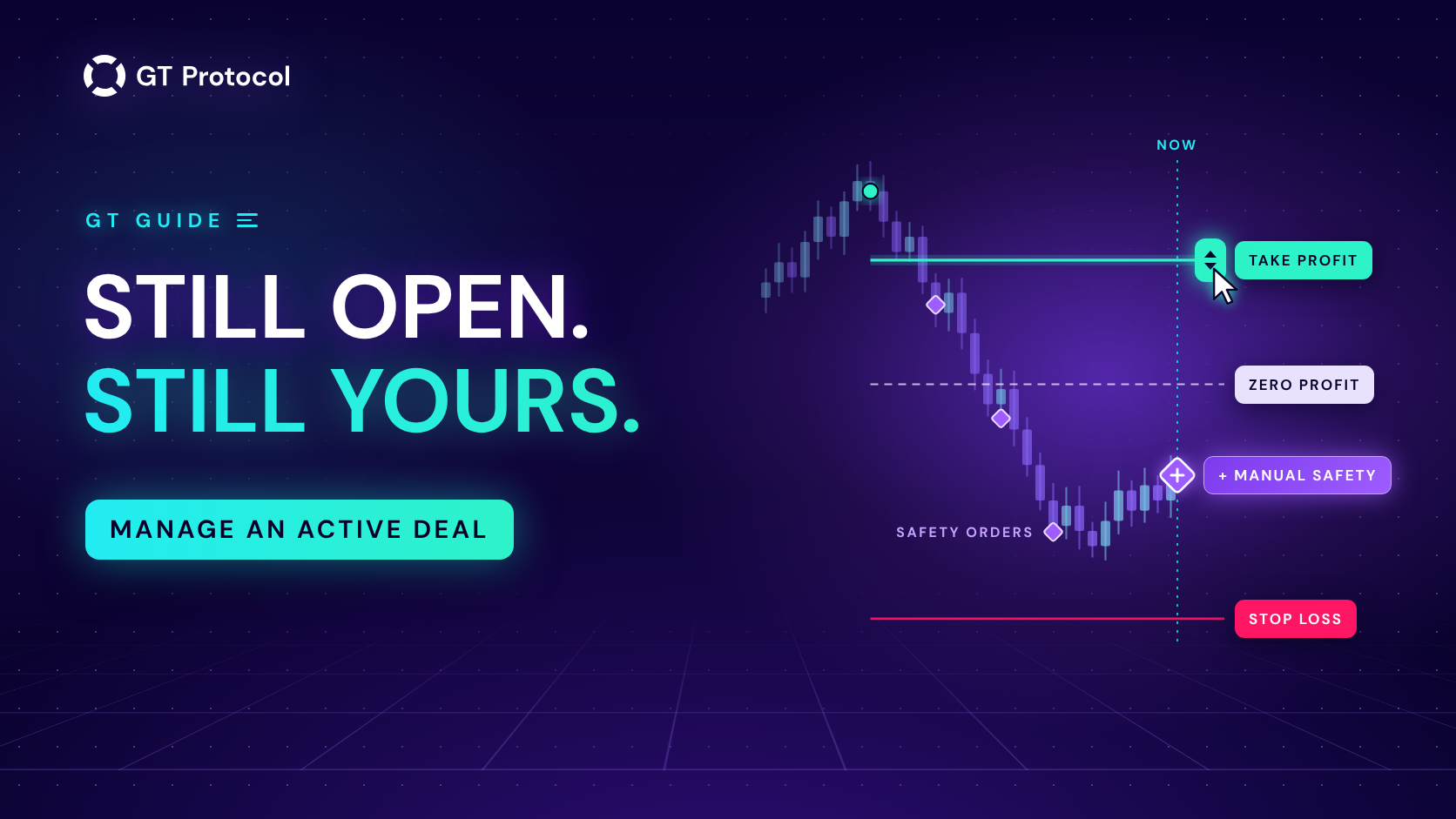
An active deal is the position a GT App strategy holds right now. You can step in at any moment from the strategy page: start a deal by hand, move its take profit or stop loss, add a safety order once the automatic ones are used up, or end the deal with Close Deal or Cancel Deal.
This guide walks through the page block by block and then through each control: what it does on spot, futures and demo, which changes reach the open deal and which wait for the next one, and how to export a strategy’s history. It describes the app as it works in September 2026; screens may change as we add features.
Table of contents
- What is an active deal?
- What does the strategy page show about a deal?
- How do you start a deal by hand?
- How do you change take profit or stop loss in an open deal?
- When can you add a manual safety order?
- What is the difference between Close Deal and Cancel Deal?
- What happens to an open deal when you press Stop?
- How do you export a strategy’s report and log?
- Can you manage a deal from Telegram?
- When is it worth stepping in?
- Frequently asked questions
What is an active deal?
A deal is one full cycle of a strategy. The start order opens a position. Safety orders add to it if the price moves against the position, and each one moves the average entry price, and the take profit with it, toward the current price. The take profit order closes the deal at the target you set, if the price gets there. A stop loss, if you use one, closes it at a loss instead.
Each strategy holds one deal at a time, so two positions on the same pair need two strategies. When a deal ends, a launched strategy opens the next one by its entry rule: on its signal, straight away with Immediate Start, or only when you press Start Deal if its entry is set to Manual start.
You manage a deal from its strategy’s page: open List of Strategies and pick the strategy. The Deals page in the menu lists the open deals of all your strategies and your deal history.
What does the strategy page show about a deal?
The controls sit at the top of the page, next to Launch or Stop. Below them, six blocks describe the deal and the strategy:
| Block | What it shows |
|---|---|
| Chart | The pair’s price with the deal’s orders drawn as lines, including take profit and stop loss |
| Deal status | A price bar with the current price, the zero profit price and the take profit, plus Deal details |
| Deal Balance | Green: money already in the position. Blue: what the remaining safety orders can still add |
| Analytics | Completed deals, trading volume and profit for a period you pick, the last 12 months by default |
| Strategy settings | The strategy’s form with Save Settings |
| Strategy trading logs | Each event of the strategy: orders placed and filled, deals started and completed |
Deal details, under the price bar, is the list to read before you touch anything: current market price, take profit price, unrealized profit, zero profit price, position size, entry price, the position’s USD equivalent, stop-loss price, safety orders filled out of the total (3/5, for example), manual safety orders once you have added one and, on futures, position margin and liquidation price. The zero profit price is your break-even, and unrealized profit is counted from it rather than from the entry price. The chart is described in TradingView Chart.
How do you start a deal by hand?
Press Start Deal. The button appears when the strategy is launched and has no open deal. It opens a deal without waiting for the strategy’s entry signal, and on a Manual start strategy it is the only way a deal begins: such a strategy never opens one by itself.
On spot and in demo, Start Deal opens the deal at market price at once. On a real futures strategy it first opens a Start condition window:
- Start with market price opens the deal now.
- Set start price takes a price (the last price is filled in for you), and Use this price confirms it. The deal then waits, and its start order fills at market when the price reaches your level. The level can be above the current price or below it.
A strategy copied from the marketplace has no Start Deal button: a copy opens its deals when the author’s strategy does. If the exchange balance can’t cover the start order, the deal doesn’t open, the strategy is stopped and you get a notification; other reasons are listed in Strategy doesn’t start a deal after I click start a deal.
How do you change take profit or stop loss in an open deal?
Edit Strategy settings and press Save Settings. Changes to the exit reach the open deal at once, the rest wait for the next deal, and the confirmation after saving tells you which is which.
| Change | Applies to |
|---|---|
| Take profit, in % or as a price | The open deal |
| Trailing take profit deviation | The open deal |
| Stop loss, in % or as a price, and trailing stop loss | The open deal |
| Trend Changer | The open deal |
| Order sizes, safety orders, leverage | The next deal |
| Exchange, margin type | Locked until the deal ends |
You can also move the take profit and the stop loss on the chart. Drag the take profit line to a new price and let go: the form switches the take profit to Specific price and saves the strategy by itself. The stop loss line drags the same way, and while a deal is open with the stop loss on, the stop loss section of the form has a Specific price field you can type into instead. A price set this way needs a small gap from the current price: on a long, the take profit stays above it and the stop loss below it; on a short, the other way round. If a price is too close, the app shows an error and nothing changes.
A specific price belongs to the open deal only: when the deal ends, the strategy goes back to its percentages. Dragging isn’t available on copied or portfolio strategies. The settings themselves are explained in Stop loss and Trailing take profit and deviation.
When can you add a manual safety order?
Automatic safety orders are the strategy’s plan for averaging: each one adds to the position as the price moves against it and brings the break-even and the take profit closer to the market. When the plan is used up, + Add Manual Safety (+ Add Safety on a phone) lets you add an order yourself.
- The button is on real deals only. Demo strategies don’t have it.
- It becomes active when no automatic safety orders are left to place: all of them have filled, or the strategy has none. It stays grey while one is still waiting on the exchange or the deal is busy placing an order.
- In the window, enter the Order size in the pair’s quote currency, such as USDT on Binance or USDC on Hyperliquid, or in the coin itself on a spot short. On futures the order size is the position you add, and the window shows the margin it needs at the strategy’s leverage: at 5x, a 100 USDT order needs 20 USDT of margin.
- Press Add Safety. The order goes to the exchange at market price right away and fills at the price of that moment.
- Once it fills, the take profit is placed again for the new average entry and the bigger position. A stop loss set in percent follows the new average entry too; one set as a specific price stays where it is. Deal details show a Manual safety orders line, such as 1/1, and you can add another order later on the same terms.
- If others copy your strategy, their copies get the same order, in proportion if your strategy sizes orders in percent.
A manual safety order puts more money into a position that is going against you: the break-even comes closer, the position grows, and on futures the liquidation price changes. Look at Deal details before and after, and see how safety orders average a position if the mechanics are new to you.
What is the difference between Close Deal and Cancel Deal?
Both end the deal right away, and both ask you to confirm first. The difference is what happens to the position.
| Close Deal | Cancel Deal | |
|---|---|---|
| Spot | Cancels the deal’s open orders, then exits the position at market | Cancels the open orders only; the coins stay in your exchange balance |
| Futures | Cancels the deal’s open orders, then closes the position at market | Not offered |
| Demo | Closes the virtual position at the current price | On spot demo, same as Close Deal |
On spot, Close Deal is the usual way out: the strategy sells what the deal bought at the current price (on a short, it buys the coin back). Cancel Deal only takes the deal’s orders off the exchange: what the deal bought stays in your account, the platform no longer follows it as a deal, and those coins are yours to manage on the exchange.
Market price is the price at the moment of the order, so in a fast or thin market the fill can differ from the last price you saw. Ending a deal early fixes its result at that moment, profit or loss. If others copy your strategy, closing or cancelling your deal does the same on their copies.
What happens to an open deal when you press Stop?
Stop only stops the strategy from opening new deals. The open deal keeps its take profit, safety orders and stop loss and ends the way it would have ended anyway. One exception: Trend Changer works only while the strategy is running, so after Stop it no longer switches the deal’s direction.
It works the other way round too: Close Deal doesn’t stop the strategy. A launched strategy opens its next deal by its entry rule, and with Immediate Start that happens almost at once. To leave the market completely, press Stop first and then Close Deal. A strategy with an open deal can’t be deleted, so close or cancel the deal before you delete the strategy.
How do you export a strategy’s report and log?
Two buttons on the strategy page turn a strategy’s history into a file.
- Export report, in the Analytics block, builds an Excel file for the period selected there. One sheet holds the strategy’s summary and settings, the other every order of its deals in that period, with price, side, status, time, volume and fee. The button appears when that period has at least one completed deal.
- Export logs, in Strategy trading logs, builds a CSV file of the strategy’s trading log, one event per line with its date.
The file is prepared in the background. When it’s ready, a download link comes by email and in Telegram if you have connected the agent, and a window with a download button appears if the app is open. Save the file soon, because the link is temporary. The next file of the same kind can be requested 30 minutes after a log and two hours after a report. Both exports are for real strategies; a copied strategy exports its log but not the report.
Can you manage a deal from Telegram?
Partly. With the AI trading agent connected, /status lists your strategies, and a strategy’s card shows its deal: entry, current profit or loss, take profit and break-even. The card’s Close deal now button asks you to confirm and then closes the deal at market, like Close Deal in the app. The same chat brings the deal’s notifications, such as a deal started, a take profit order executed and a deal completed. Moving the take profit or stop loss, adding a manual safety order, cancelling a spot deal and exporting are done in the app.
When is it worth stepping in?
Every manual action replaces part of the plan you set up in calm conditions with a decision made in the middle of a deal. A few rules of thumb keep those decisions deliberate:
- Read Deal details first: your break-even is the zero profit price, and it moves with every safety order.
- Pushing the stop loss further away and adding a safety order both raise how much the deal can lose.
- A backtest or a demo run describes the strategy without your interventions, so after manual changes your results no longer compare with it.
- If you keep closing deals by hand at the same point, change the settings instead, or see whether Smart Exit fits: it closes a deal early by its own fixed rule.
- On futures, check the liquidation price after any change to the position; How to avoid liquidation explains what moves it.
Frequently asked questions
Does closing a deal stop the strategy?
No. The strategy stays launched and opens its next deal by its entry rule. Press Stop first if you don’t want a new deal.
What happens to an open deal when I stop the strategy?
It stays open with its take profit, safety orders and stop loss, and it ends as it normally would. Trend Changer no longer acts on it. Press Close Deal to end it now.
Why is + Add Manual Safety grey?
The strategy still has automatic safety orders to use, one of them is waiting on the exchange, or the deal is placing an order. On demo strategies the button isn’t shown at all.
Close Deal or Cancel Deal: which one sells my coins?
Close Deal. Cancel Deal only removes the deal’s orders and leaves the coins in your exchange balance. On futures there is only Close Deal, which closes the position at market.
Can I delete a strategy with an open deal?
No. Close or cancel the deal first, then delete the strategy.
Can I manage the deal of a copied strategy?
You can close or cancel it. You can’t start a deal on a copy: it follows the author, and the author’s Start Deal, Close Deal, Cancel Deal and manual safety orders are repeated on your copy.
Where to start
Open a strategy with an open deal in GT App and find the zero profit price and the take profit in Deal details. To try the controls without real money, use a demo strategy: Start Deal, take profit and stop loss changes and Close Deal all work there.
This article is published by GT Research for information. It describes how deal controls work in GT App and is not financial advice. Market orders fill at the price of the moment, and manual actions change a strategy’s results. Trading digital assets carries a risk of losing some or all of the funds committed. GT Protocol provides software, not financial, investment, tax or legal advice. GT App is not available in every jurisdiction; the Terms of Service list the restrictions.