
Four Steps from Sign-Up to Real-Money Trading in GT App
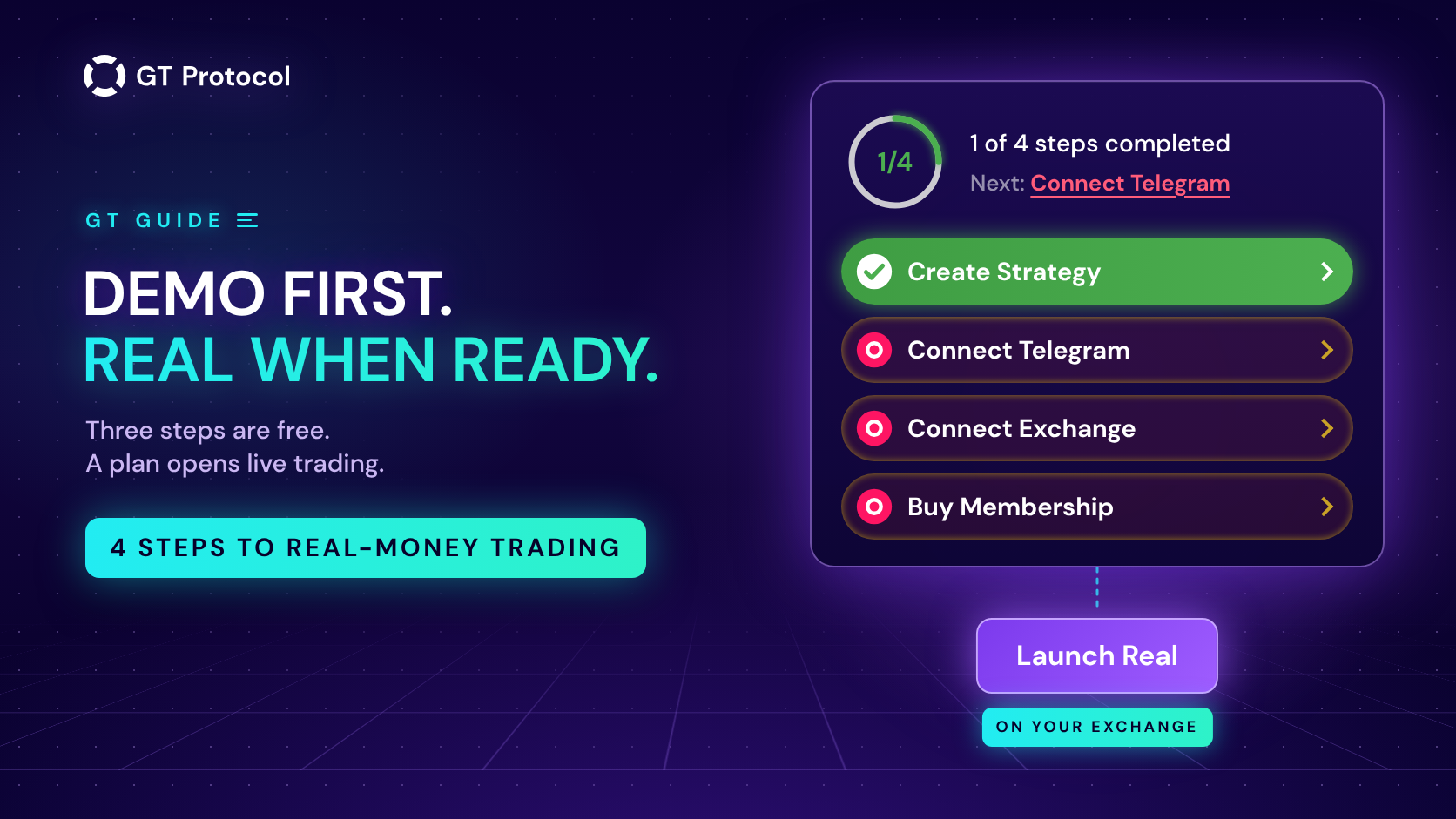
A new GT App account shows four setup steps at the top of the app: Create Strategy, Connect Telegram, Connect Exchange and Buy Membership. Together they take you from a free demo strategy to a strategy that trades your own money on your own exchange account. Each step opens the section where that part of the setup is done.
This guide goes through the four steps in the order we suggest, says which of them cost nothing, and explains what changes at the point where real money comes in. The steps get your account ready to trade. They don’t make a strategy profitable, and nothing here is investment advice. It describes the app at the start of October 2026; screens may change as we add features.
Table of contents
- What are the four setup steps in GT App?
- What does a new account already have?
- Step 1: what does Create Strategy do?
- Step 2: what does Connect Telegram do?
- Step 3: what does Connect Exchange do?
- Step 4: what does Buy Membership do?
- In what order should you do the steps?
- What changes when real money comes in?
- Where are the steps after they disappear?
- Frequently asked questions
What are the four setup steps in GT App?
After you sign up, a row of four buttons sits above the content of every page in the app: Create Strategy, Connect Telegram, Connect Exchange and Buy Membership. On a phone the row folds into one block with a progress ring, a line such as “1 of 4 steps completed” and the name of the next step; tap it to open the list. A finished step turns green.
The steps are shortcuts, not a wizard that acts for you. Each one opens the part of the app where that piece of setup lives, and the row only keeps track of what is done. You can take the steps in any order, skip one and come back to it later.
The row goes away for good once all four steps are done. It also disappears as soon as you buy a plan, even if other steps are still open. Where are the steps after they disappear? lists where each section lives in the menu.
What does a new account already have?
Before you press anything, a new account comes with three things:
- Two demo strategies, Demo Long and Demo Short. GT App creates them when you sign up in the app. They trade one futures pair with a virtual balance, one betting on a rise and the other on a fall. What Are Demo Long and Demo Short in GT App? explains how they work.
- Free access to everything that doesn’t touch real money. Building strategies, backtesting them on historical candles and running them in demo cost nothing. Demo is paper trading: a strategy follows live prices, but its orders are simulated and nothing reaches an exchange.
- No paid plan. Without one you can still connect an exchange account, but a strategy can’t trade real money on it.
So the free part of GT App is open from the first minute, and the four steps add what real trading needs on top of it.
Step 1: what does Create Strategy do?
Create Strategy opens the strategy builder. It is a single screen: you start from one of the AI-generated strategies at the top or set your own rules, and a backtest re-runs on historical candles with every change, so you see how the rules would have traded before you launch anything. Backtest and Launch a Futures Strategy in One Screen walks through the screen block by block.
Without a plan the screen is titled Create Demo Strategy, and its launch button reads Launch trading. It starts your strategy in demo, on live prices with a virtual balance, and on your first strategy of your own it opens the first deal straight away, so there is something to watch from the start. That is the point of this step: you watch your own rules trade in the current market, with no money at stake. The step turns green once you have a strategy of your own; the two starter demos don’t count.
Keep in mind what the two tests can and can’t tell you. A backtest replays history, and a demo plays the present with simulated orders. Neither predicts what the same rules will do with real money. Backtesting vs Paper Trading compares them.
Step 2: what does Connect Telegram do?
Connect Telegram opens a chat with our AI trading agent, @gt_agentbot, with a link to your account already attached. Press Start, the bot connects to your GT App account, and the step turns green.
From then on, notifications about your strategies arrive in that chat: a deal started, a take profit executed, a deal completed, for demo and real strategies alike. The same chat is the AI agent: you can ask it about the market, have it build and backtest a strategy, or check on the ones you run. It costs nothing. AI Trading Agent in Telegram: What It Can and Can’t Do covers what it does and how to make sure you are talking to the real bot.
This step matters most later, when a strategy trades real money: a deal that opens or closes while you are away from the app still reaches you.
Step 3: what does Connect Exchange do?
Connect Exchange opens Connect exchange account, where you choose Binance or Hyperliquid. This is where your money stays. GT App doesn’t hold your funds: they remain on your own exchange account, and strategies trade them through a connection that, as the page says, has trading permissions only and can’t withdraw.
- Binance has two ways in. Fast, marked as recommended: log in to Binance, return to the page, press Connect and confirm the connection to GT App, with no keys to copy. Manual: paste an API key and secret that you create on Binance with trading permissions only.
- Hyperliquid connects with the private key of a separate API wallet that you create on Hyperliquid itself, never the key of your main wallet. Hyperliquid asks for a small deposit before it lets you create one, and the page explains each step. You can also trade on a vault you manage.
You can do this step before you buy a plan. Without a plan, one exchange account can be connected, and it waits there until a plan lets strategies trade on it. The step turns green when the connection is active. A futures strategy also needs futures trading switched on for your exchange account, and not every account has it, so check what yours allows. The step-by-step guides are in our Knowledge Base: How to connect your Binance account to GT App and Link your Hyperliquid to GT App account.
Step 4: what does Buy Membership do?
Buy Membership opens the plans page, and it is the step that opens real trading. With a plan, a strategy can trade your own funds on the exchange account you connected. Without one, everything stays in demo.
For a new account the page leads with the entry plan, x10, under the button Unlock for $5. It is a one-time offer for accounts that have never had a plan. At the time of writing it includes 2 spot and 2 futures strategies at once, 2 exchange connections and a $50 profit cap: the plan has no time limit and stays active until the profit your strategies make reaches the cap, if it ever does. Larger plans raise the limits. How to Buy a GT App Membership in Telegram lists all of them and shows how to pay in USDT or USDC from the agent’s chat with /membership.
Buying a plan hides the setup row, whatever steps are left.
In what order should you do the steps?
The order on the screen is the order we suggest, and the first three steps cost nothing:
| Step | Cost | What it adds |
|---|---|---|
| Create Strategy | Free | Your own strategy, backtested and running in demo |
| Connect Telegram | Free | Deal notifications and the AI agent in one chat |
| Connect Exchange | Free | The account your strategies will trade, with your funds staying on it |
| Buy Membership | From $5 | Real trading on the connected account |
Demo comes first for a practical reason: you see how your rules behave on live prices, how often they trade and how deep a deal can go against you, before money is involved. Telegram comes next, so those deals reach you as they happen. The exchange and the plan come last, and once both are in place you can go live.
Nothing forces this order. If you already know your exchange and your plan, you can start with them; the setup row simply tracks what is done.
What changes when real money comes in?
Going live is one button, and there are two places to find it:
- On a demo strategy. A demo card has Launch real. It copies the demo’s settings into a new real strategy, which starts and waits for its own entry signal, and the demo is stopped and removed. What happens when you press Launch real has the details.
- In the builder. With a plan and a connected exchange, the launch button reads Launch Real. If you have a plan but no suitable exchange account yet, it reads Connect Exchange: your strategy is kept as a demo while you connect, and its settings aren’t lost.
From that moment the strategy trades your own funds, and its results are yours, gains and losses alike. A good backtest and a good week in demo don’t carry over: the market a live strategy meets is not the history it was tested on, and real orders fill at real prices. Before you launch, check the settings against your balance. The trading capital you enter in the builder, the order sizes, the leverage and the stop loss decide how much a single deal can cost you. How to Manage an Active Deal in GT App covers what you can still change once a deal is open.
Where are the steps after they disappear?
The row hides itself in two cases: all four steps are done, or you bought a plan. Every section it leads to stays in the menu:
| Step | Where to find it |
|---|---|
| Create Strategy | Trading, then My Strategies, then Create Futures Strategy |
| Connect Telegram | Account, then Profile & Telegram, then Activate AI |
| Connect Exchange | Account, then Exchange accounts |
| Buy Membership | Account, then Memberships |
Frequently asked questions
Do I have to complete all four steps?
No. Each step works on its own, and the first three cost nothing. Building, backtesting and demo trading don’t need the others. To trade real money you need two of them: a connected exchange and a plan.
Will the four steps make my strategy profitable?
No. They get your account ready to trade real funds; they don’t make any strategy profitable. Results depend on the market and on your settings, and a real strategy can lose money, up to all of the funds it trades. A backtest or a demo result isn’t a forecast.
Does GT App hold my money?
No. Your funds stay on your own exchange account. GT App trades them through a connection with trading permissions only, which can’t withdraw, and you can delete that key on the exchange side whenever you like.
Can I connect an exchange before buying a plan?
Yes. Without a plan you can connect one exchange account. It stays connected, and strategies can trade on it once you have a plan.
Do I need to confirm my email?
If you signed up with email, yes, and it is best done right away. Until you do, a banner at the top of the app asks you to open the link we sent to your address, so we can reach you about your account. If the link has expired, the same banner sends a new one.
Can I do the steps from Telegram instead?
Partly. The AI agent can build and backtest a strategy, launch it in demo, guide you through connecting Binance or Hyperliquid, and sell you a plan with /membership. The setup row in the app reflects what you did there.
Where to start
Open GT App, press Create Strategy in the setup row, pick a starting point and launch it in demo. While it runs, connect Telegram, so its deals reach you as they happen. When you have seen enough of how your strategy trades, connect your exchange and pick a plan.
This article is published by GT Research for information. It describes how getting started in GT App works and is not financial advice. Backtests and demo results are simulated and don’t predict results on a real account. Trading digital assets, especially futures with leverage, carries a risk of losing some or all of the funds committed. GT Protocol provides software, not financial, investment, tax or legal advice. GT App is not available in every jurisdiction; the Terms of Service list the restrictions.