
AI Trading Agent in Telegram: What It Can and Can't Do
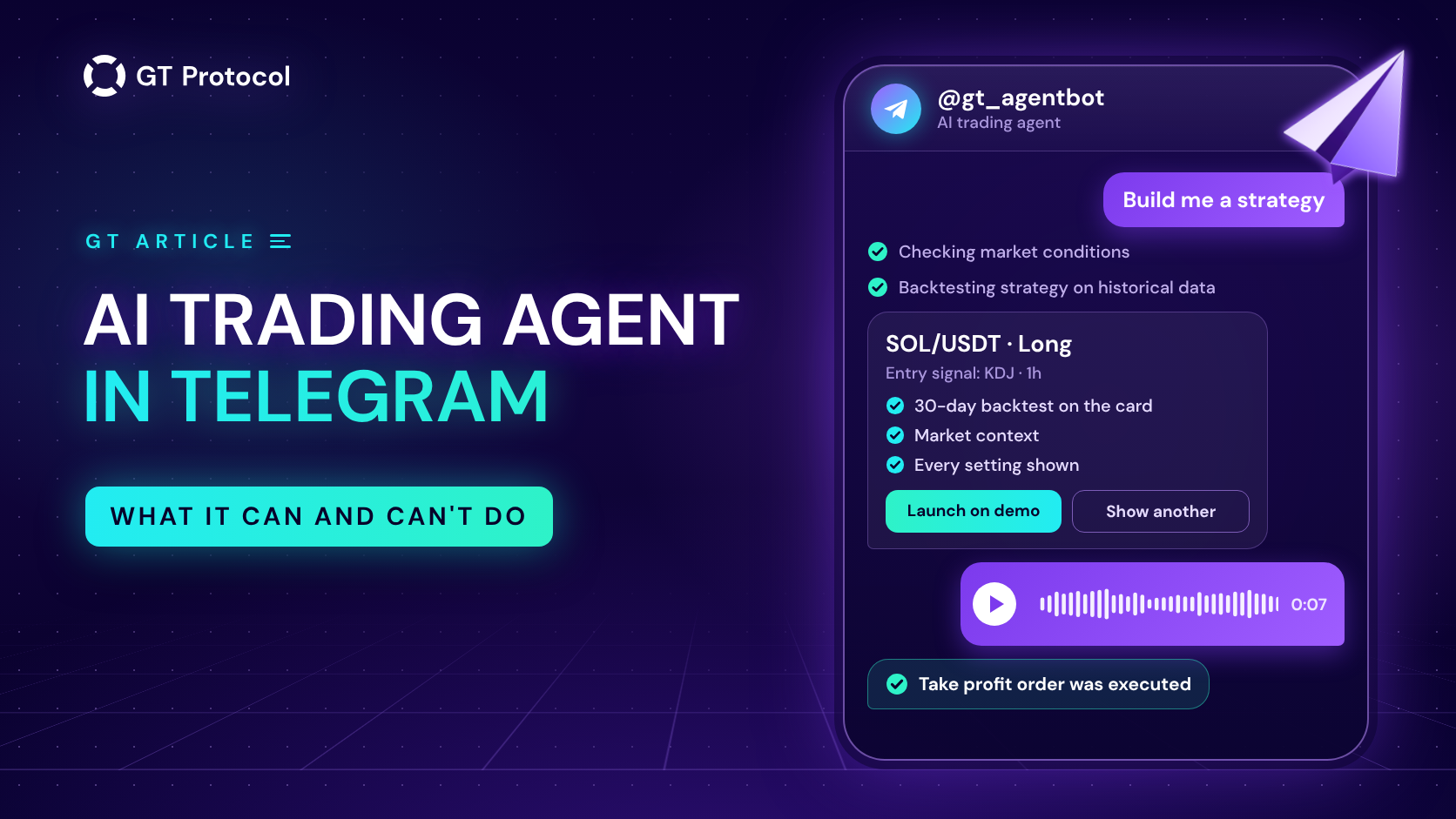
The GT App AI trading agent is a Telegram bot linked to your GT App account. It reads live market data, backtests a strategy before suggesting it, reviews the strategies you run, starts, stops or closes them on request, and delivers your trade notifications. It can’t withdraw your funds and acts only on what you ask or switch on.
This guide covers how to connect the agent to GT App, the buttons and commands it answers, how it picks and tests a strategy, where its limits are, and which jobs are still better done in the app. It describes the agent as it works today; screens may change as we add features.
Table of contents
- What is the GT App AI trading agent?
- How do you connect the agent to GT App?
- What can you ask the agent to do?
- How does the agent build and test a strategy?
- What can’t the agent do?
- Should you use the app or the agent for each task?
- How do you keep a Telegram trading bot safe?
- Frequently asked questions
What is the GT App AI trading agent?
The GT App AI trading agent is an assistant that lives in Telegram as @gt_agentbot and works on top of your GT App account. Once connected, it sees your exchanges, your strategies and their open deals, and it can take the same actions you take in the app: build a strategy, launch it, start or stop it, close a deal. For market context it pulls live data before it answers: the Fear & Greed index, the 24-hour moves of BTC, ETH and SOL, and technical readings such as KDJ and RSI on several timeframes. It answers in the language you write in. It also takes voice messages: it transcribes what you said, shows you the text so you can check it, and then acts on it. Connecting the agent is also how GT App trade notifications reach you in Telegram, so one chat covers alerts, questions and actions.
If you want the general idea behind the term first, we explain it in What Is an AI Trading Agent?. This guide is about the one inside GT App.
How do you connect the agent to GT App?
You connect the agent from inside GT App, so it is linked to the right account. Open your Profile, find the AI Trading Agent block and tap Activate AI. Telegram opens a chat with @gt_agentbot; press Start, and the agent confirms the connection with a welcome message. The same link sits behind the Connect Telegram step of the setup checklist, the AI agent banner on the marketplace screen and the prompt next to Smart Exit in the strategy settings, so any of them gets you to the same place. If you open the bot without an account, it still works in guest mode: it gives a market overview and builds strategy ideas with backtests, and when you want to launch one it asks you to sign up first. A strategy you built as a guest is kept. After you connect, the agent offers to launch it on demo.
Step by step:
- Sign in to GT App and open Profile.
- In the AI Trading Agent block, tap Activate AI.
- Telegram opens @gt_agentbot. Tap Start.
- The agent welcomes you and offers to build a first strategy. From then on, /start opens with a summary of your real and demo strategies.
- Back in Profile, choose how many notifications you want. With Send All notifications on, you get every event. With it off, you get the key ones: a strategy starts a deal, trailing is activated, a take profit order is executed, a deal is completed, total strategy profit, an exchange error, and manual changes to a deal’s orders.
To disconnect, tap Deactivate AI in Profile or send /logout in the chat. Notifications stop with it.
What can you ask the agent to do?
The agent answers both buttons and plain words. Three buttons sit under its welcome message: Market Overview, Portfolio Review and Build me a strategy. A short menu of commands covers the rest: your strategies, your exchanges, membership plans and the trade reports of GT AI Fund. You can also skip all of that and write the way you would to a person: “how is my ETH bot doing?”, “stop the SOL strategy”, “build a BTC short on 4h”, “buy bitcoin at market and sell at plus 1%”. When you give numbers, the agent keeps them. Ask for a 1% take profit and the strategy card shows 1%, not whatever its own analysis would pick. If you don’t mention leverage, futures, long or short, it builds a spot strategy. Only the details you left out are filled in by the agent, and every one of them is visible on the card before anything launches.
| Button or command | What the agent does |
|---|---|
| Market Overview | Fear & Greed reading, 24-hour moves of BTC, ETH and SOL, which of them is strongest and weakest, and the strategy patterns it matches to this kind of market |
| Build me a strategy | Picks a pair, direction and entry signal from live data, backtests the setup and shows it as a card with launch buttons |
| Portfolio Review | Status of each strategy, then a short analysis: overall state, warnings such as overlapping positions or safety orders nearly used up, and one conclusion |
| /status | Your strategies, real and demo separately; each opens a card with entry, size, current profit or loss, take profit price, break-even price, distance to take profit, safety orders used and time in the deal |
| /exchanges | Connected exchanges and whether each one is active, plus a guided flow to connect Binance or Hyperliquid (ask in plain words for a balance) |
| /membership | Membership plans, paid in USDT or USDC |
| /reports | Turns the GT AI Fund trade reports on or off |
A strategy card from /status comes with its own buttons. Ask AI what to do gives advice on that strategy alone. Close deal now asks you to confirm, then closes the deal at market. There is a switch for Smart Exit, which closes a deal early when it is most of the way to take profit and the market shows signs of turning, and a button to restart a stopped strategy. The fund reports are the closed trades of our autonomous fund, profits and losses alike; we describe the fund itself in GT AI Fund: An Autonomous Hedge Fund, Measured.
How does the agent build and test a strategy?
When you tap Build me a strategy, the agent follows the same steps. It reads the market first: the Fear & Greed index and the moves of the majors. Then it runs technical analysis on several pairs and timeframes, and checks your existing strategies so it does not suggest a pair you already trade or an exchange that is already busy. From that data it chooses the entry signal: Bollinger Bands for a ranging market, KDJ for a trending one, or an immediate entry when you ask to buy now. It sets a timeframe, a take profit sized to that timeframe and to recent volatility, a stop loss that tightens as leverage rises, and a ladder of safety orders. When it chooses leverage itself, it stays at 10x or lower. Then it runs a backtest, usually on the last 30 days, and shows the result at the top of the card: the test’s profit, its win rate and the number of liquidations. Market context and every parameter follow below.
Under the card you get launch buttons: one for each exchange you have connected, a Demo button, and Show Another Strategy if you want a different idea. Launching creates the strategy with exactly the settings on the card.
One design choice matters for how you read that card. The agent does not show a setup that lost money or won fewer than half its trades in the test. If the first configuration misses that bar, it changes the timeframe, signal, direction or pair and tests again, up to five times, and shows the best result. So the card is the best of several tries on one recent month, and the test result on it is positive by design. That screens out setups that failed that month, and it says little about the next one. We explain why in How to Read a Backtest Report (and Why Results Lie).
Two more details. An immediate entry has no signal to replay, so for those requests the card shows a KDJ or Bollinger backtest as a baseline and says so. And the numbers on a card come from the backtest or from your account data; by design, the agent says “data not available” instead of estimating a figure it does not have.
The safer next step is the Demo button: the same settings run on live prices with no real money, which shows how the strategy behaves now rather than how it would have done last month. Paper Trading Your First Bot covers what to watch during that run.
What can’t the agent do?
The agent can’t move your money. GT App connects to exchanges with trading-only access, and your funds stay in your own exchange account; there is no function in the agent for withdrawals or transfers, because GT App never asks for that right in the first place. It doesn’t launch a new strategy on its own: a strategy starts when you tap a launch button. It starts, stops or closes existing strategies when you ask. The one automatic action is Smart Exit, and only on strategies where you switched it on. It can’t see the future: a backtest describes the recent past, and the agent’s market commentary, however confident it sounds, is a reading of current data, not a forecast. It sticks to crypto trading and GT App, and politely declines unrelated requests. And it does not replace the app for detailed work: copying a marketplace strategy, building a portfolio of several coins and editing every field of a strategy are done in GT App.
It also tells you when a plan does not fit your money. Give it a budget and it sizes the orders so the whole ladder of safety orders fits; if the amount is too small for a futures strategy, it says so plainly and suggests demo instead. Why keys without withdrawal rights matter is covered in Non-Custodial Trading Bots: Keep Your Keys.
Should you use the app or the agent for each task?
The agent and the app use the same account and the same strategies, so there is nothing to sync: a strategy launched from Telegram appears in GT App at once, and the other way round. The difference is the kind of work each suits. The agent is quicker when you want an idea, a status check or a single action from your phone: a proposal with a backtest attached, a review of what is running, closing one deal, switching Smart Exit on. The app is the place for anything that needs the full form or the full screen: connecting an exchange with every option, editing each setting, the strategy chart, the marketplace, portfolios. You can use both, even in the same hour. The table below lists the common tasks and where each one is handled today; where a cell says the agent can’t do something, the app can.
| Task | In the app | In the agent |
|---|---|---|
| Connect an exchange | Binance in one click or with API keys; Hyperliquid, including trading on a vault | Guided: a link to the one-click Binance flow, a trading-only Binance API key pasted in the chat, or a link to the Hyperliquid flow |
| Build a strategy | Full form with every setting, or the backtest mode | Complete setup proposed from live data, with a backtest attached |
| Adjust settings | Edit any field of any strategy | Rebuilds a proposal on request (“use 4h”, “make it USDC”); running strategies are edited in the app |
| Test before going live | Backtest mode and demo | Backtest runs before every suggestion; Demo button on every card |
| Watch a deal | Strategy page with chart | Strategy card with entry, profit or loss, take profit and break-even |
| Close a deal | Close at market | Close deal now, after a confirmation |
| Smart Exit | Switch in the strategy settings | Switch on the strategy card |
| Copy a marketplace strategy | Yes | No |
| Portfolio of several coins | Yes | No |
| Trade notifications | In-app notifications | Messages in the same chat |
| Buy a membership | Membership page | /membership, paid in USDT or USDC |
Rows describe GT App and the agent as of September 2026.
How do you keep a Telegram trading bot safe?
Telegram has plenty of fake trading bots, so treat any bot there with care, ours included. Open the agent from the Activate AI button in your GT App profile rather than from a search, and check that the handle is exactly @gt_agentbot. GT App never needs withdrawal rights. It never asks for your exchange password or your wallet’s seed phrase: Binance connects through Binance’s own login or a trading-only API key, and Hyperliquid through a separate API wallet key that you create on Hyperliquid itself. If you connect Binance in the chat, create the key with trading permissions only and restrict it to the IP addresses the guide lists. The agent deletes the messages with your key and secret as soon as it reads them. You can cut the link at any moment with Deactivate AI or /logout, and you can delete an API key on the exchange side whenever you like.
The step-by-step guides for both exchanges are in the Knowledge Base: How to connect your Binance account to GT App and Link your Hyperliquid to GT App account.
Frequently asked questions
Is the GT App AI trading agent free?
Chatting with the agent, market overviews, strategy ideas and demo launches don’t need a paid plan. Running a strategy with real funds on a connected exchange needs a GT App membership; plans start at $5, and you can buy one from the chat with /membership.
Which exchanges does the agent work with?
Binance and Hyperliquid, the two exchanges GT App supports. The agent launches real strategies only on exchanges connected to your GT App account, and its guided flow helps you connect one if you haven’t yet.
Does the agent trade on its own?
No. A new strategy starts when you tap a launch button, and existing strategies start, stop or close when you ask. The only automatic action is Smart Exit, and only on strategies where you turned it on.
Can I talk to it in my language or by voice?
Yes. The agent replies in the language of your message and accepts voice messages. It shows the transcript of each voice message before acting on it, so you can see what it understood.
Will I still get trade notifications?
Yes. Once the agent is connected, GT App trade notifications arrive in the same chat. In your Profile you can keep all of them or only the key events.
What happens to a strategy I built before signing up?
The agent keeps it. After you create a GT App account and connect the agent, it shows that strategy again and offers to launch it on demo.
Is this article investment advice?
No. It is published by GT Research for information. GT Protocol provides software, not financial, investment, tax or legal advice. Strategies the agent suggests are starting points generated by software, not recommendations, and every trading decision is the reader’s own.
Where to start
Connect the agent from your Profile in GT App, tap Market Overview to see how it reads the day, then ask it to build a strategy. Launch the first one on demo, watch it close a few deals, and only then reach for the real-money buttons. No account yet? Open @gt_agentbot and try it in guest mode first.
This article is published by GT Research for information. It is not financial advice, and nothing here is a prediction or a promise of returns. Strategies the agent suggests are generated by software from recent market data; backtests and demo results are simulations and do not predict how a strategy will perform with real funds. Trading digital assets, and futures in particular, carries a risk of losing some or all of the funds committed. GT Protocol provides software, not financial, investment, tax or legal advice. GT App is not available in every jurisdiction; the Terms of Service list the restrictions.