
How to Optimize a Crypto Trading Bot in One Click
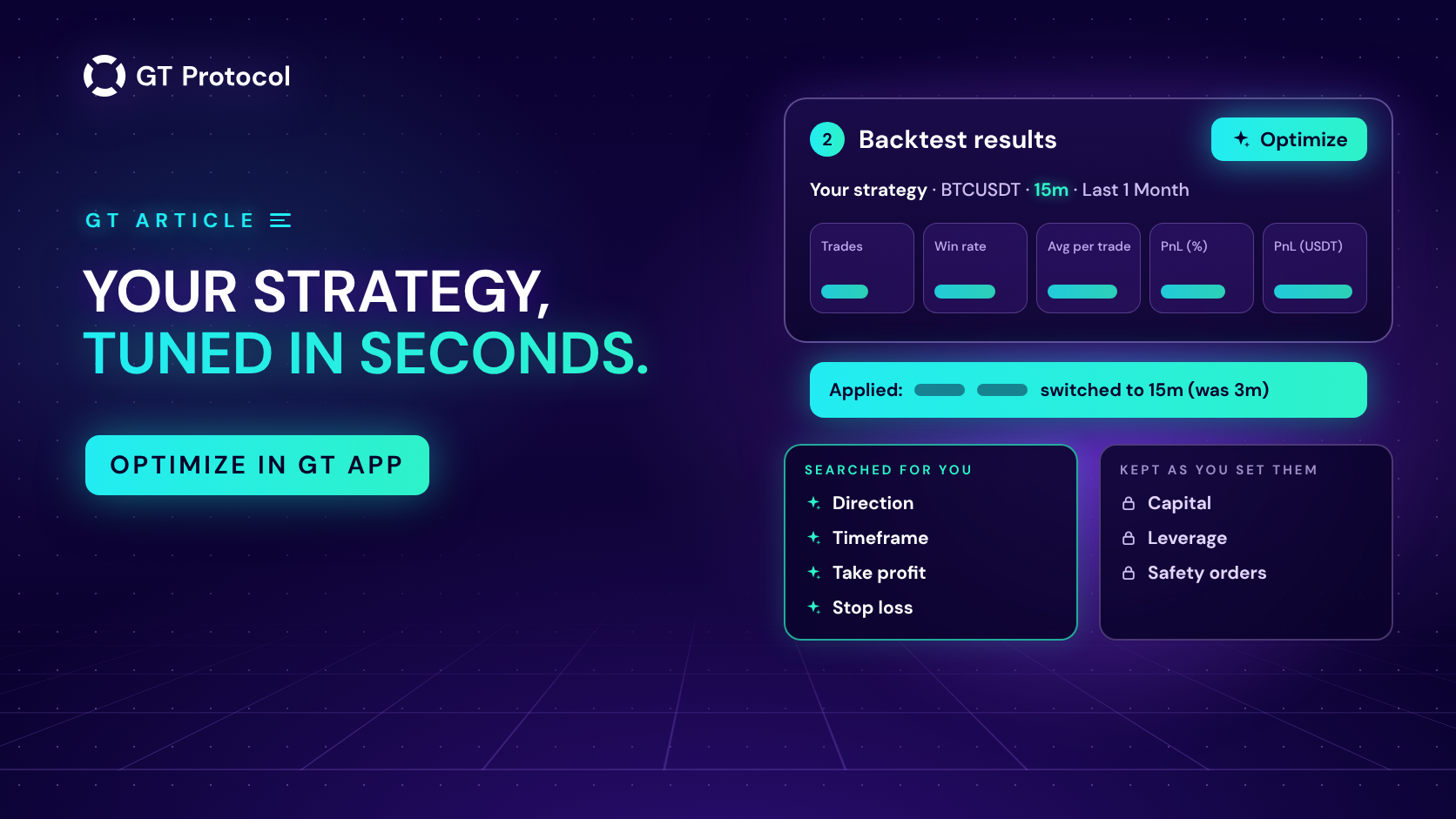
Optimize is a one-button search built into the strategy builder of GT App and into GT AI Backtest. One press tests hundreds of versions of your strategy on real price history, picks the strongest and applies it, usually within seconds, while your capital, leverage and order sizes stay exactly as you set them.
This guide shows what Optimize does for you, how to use it step by step, what its messages mean and how to get the most out of it. It describes the app as of October 2026 and doesn’t tell you which coin or settings to trade.
Table of contents
- What is Optimize in GT App?
- What does Optimize do for you?
- How do you use Optimize step by step?
- What do Optimize’s messages mean?
- How do you get the most out of Optimize?
- How does Optimize in the app compare with GT AI Backtest?
- Frequently asked questions
What is Optimize in GT App?
Optimize is a button on the Backtest results card of the Create Strategy screen, the screen where you pick a pair, set the rules, test them on past prices and launch the strategy in Demo or with real funds. On a computer it sits in the card’s header; on a phone it is a full-width button under the chart.
Press it, and Optimize tries your strategy in hundreds of versions: long and short, timeframes from 1 minute to 1 day, and a range of take-profit and stop-loss levels. If your strategy runs without a stop loss, it checks versions with one too and tells you if the winner adds it. When the search ends, the strongest version is applied to your form and the backtest runs again, so the numbers and the chart in front of you are the winner’s.
Optimize tunes the rules of your strategy: direction, timeframe, take profit and stop loss. Everything that decides how much money is at work stays exactly as you set it: the capital, the leverage, the start order and the safety orders, along with the entry signal, the pair and the period you test on. It looks for better rules, not a bigger bet.
What does Optimize do for you?
A trading bot is a signal plus a handful of numbers, and those numbers shape much of the result. The same entry behaves very differently on 1-minute and 1-hour candles, and a 1.5% take profit closes deals that a 5% target would leave open for days. What suits BTC may not suit DOGE, and what suited last month may not suit this one. Finding the right numbers by hand can take an evening of trial and error. Optimize turns it into one press.
- Hours of testing in seconds. Checking both directions, twelve timeframes and a range of take-profit and stop-loss levels by hand means hundreds of backtests: change a field, wait, write the result down, repeat. Optimize runs that whole search for you and usually finishes within seconds.
- It looks where you wouldn’t. By hand, you would probably test the two or three timeframes you already like. Optimize goes through timeframes from 1 minute to 1 day in both directions, so the winner may trade at a pace or on a side you would never have tested yourself.
- Your money settings stay yours. Capital, leverage and order sizes are never touched. You decide how much is at work, and Optimize works within that.
- It’s honest. It never offers a version that lost money or ended in a liquidation on your period. If your own settings are already the strongest, it leaves them alone and says so, naming the closest runner-up. If nothing works on that pair and period, it tells you instead of applying a weak result.
- It shows its work. The message names the winning direction, take profit, stop loss and timeframe, compares its result with yours and says how many versions were checked. You see what the market rewarded, not just a new number.
- From idea to Demo on one screen. The winner is already on your form. Press Run Demo on the same screen and watch it trade live prices with paper money, free and without risking your funds.
How do you use Optimize step by step?
The whole cycle happens on one screen.
- Open Create Strategy in GT App and pick the exchange and the pair you want to trade.
- Set the money part the way you would really trade it: capital, leverage, start order and safety orders. Optimize keeps all of it.
- Choose the period to test on. The list runs from Last 1 Day to Last 1 Year.
- Press Optimize. The button counts the seconds while it searches.
- Read the message at the top of the screen. The winner is already applied, and the card and the chart show its backtest.
- Press Run Demo to watch the winner trade live prices with paper money.
- Go live when you’re ready. Launching with real funds on your own exchange account needs a plan; everything before that is free.
What do Optimize’s messages mean?
Each search ends with one message at the top of the screen. The wording below is the app’s, shortened.
| Message | What it means |
|---|---|
| Applied: long, TP 2%, SL 6% on 15m | A stronger version was found and applied; the message compares its result with yours and says how many versions were checked |
| …switched to 5m (was 15m) | The winner trades on another timeframe, and your form now uses it |
| …stop loss added at 6% | Your strategy had no stop loss; the winner uses one |
| Your settings are already the strongest here | Nothing beat your settings, so nothing changed; the closest alternative is named |
| No profitable configuration found | Nothing held up on this pair and period; try another period, timeframe or pair |
| Your strategy made no trades in this window | There was nothing to optimize yet; widen the period, take a faster timeframe or loosen the entry |
| Optimization is taking longer than 5 minutes | The search was too heavy; try a shorter period or a larger timeframe |
How do you get the most out of Optimize?
Optimize does the searching. A few habits help you get more out of its result.
- Start from settings you would really trade. Optimize builds on your capital, leverage and safety orders, so the winner is only as realistic as they are. How Much Money Do You Need to Start a Crypto Trading Bot? helps with the budget.
- Try two periods. Run it on Last 1 Month and again on Last 3 Months. If both pick similar settings, the setup has worked through more kinds of market; if they disagree, the latest weeks behave differently from the longer stretch, and that is worth knowing before you launch.
- Compare pairs. Switch the pair and press Optimize again. It’s the quickest way to see which market suited your idea best over the same period.
- Read more than the profit. Look at the number of trades, the win rate and the deals on the chart. How to Read a Backtest Report lists what to look for.
- Run the winner in Demo first. A backtest shows what worked on prices that already happened. Demo shows how the winner handles prices it has never seen, without risking money. Commit real funds to what you have watched work. Backtesting vs Paper Trading explains why both tests matter.
How does Optimize in the app compare with GT AI Backtest?
Both run on the same backtest engine. The app keeps the search focused on your own strategy; the site adds a deeper tool for exploring.
| GT App | GT AI Backtest | |
|---|---|---|
| Where | Optimize on the Backtest results card | Optimize under the results, plus the Optimize Strategy page (GT AI Optimizer on a phone) |
| What it tunes | Direction, timeframe, take profit, stop loss | The button also tries leverage near yours; the page takes your ranges for take profit, stop loss, leverage and safety orders across several coins and timeframes |
| What you get | The winner applied to your strategy | The best result applied, or a ranked list of top results on the page |
| Next step | Run Demo or go live on the same screen | Open the strategy in GT App |
Frequently asked questions
Does Optimize cost anything?
No. Optimize is part of the backtest on the Create Strategy screen and on GT AI Backtest, and running the winner in Demo is free too. A plan is needed only to launch a strategy with real funds.
Will Optimize change my leverage or order sizes?
Not in GT App. It changes direction, timeframe, take profit and stop loss only, and keeps your capital, leverage, start order and safety orders. On GT AI Backtest the Optimize button also tries leverage near your value.
Why did Optimize switch my timeframe?
Because the strongest version of your strategy on that period trades on another timeframe. Optimize looks across the timeframes the exchange offers, and when the best result is on a different one, it applies that timeframe and says so in the message, for example “switched to 5m (was 15m)”.
How long does Optimize take?
Usually seconds; the button shows the time as it runs. Long periods take longer, and if a search runs past five minutes, the app suggests a shorter period or a larger timeframe.
Can I use Optimize on my phone?
Yes. On a phone the Optimize button sits under the chart on the Backtest results card, and the winner is applied the same way as on a computer.
Does a better backtest mean more profit?
No. Optimize finds the settings that did best on the history you chose, and markets change. Treat the winner as a strong candidate: run it in Demo and watch how it handles prices it hasn’t seen before you commit real funds.
Is this article investment advice?
No. It is published by GT Research for information. GT Protocol provides software, not financial, investment, tax or legal advice. The settings here describe how the tool works; they are not recommendations or forecasts, and every trading decision is the reader’s own.
Where to start
Open Create Strategy in GT App, pick a pair you know, set the capital and leverage you would actually use and press Optimize. See what it changed, then press Run Demo and watch the winner trade. If you are new to the screen, Backtest and Launch a Futures Strategy in One Screen walks through it, and Four Steps from Sign-Up to Real-Money Trading in GT App shows where it fits in the app.
This article is published by GT Research for information. It describes how Optimize works in GT App and on GT AI Backtest, and it is not financial advice. Nothing here is a prediction or a promise of returns. Backtest and demo results are simulations and do not predict how a strategy will perform with real funds. Trading digital assets, and futures in particular, carries a risk of losing some or all of the funds committed. GT Protocol provides software, not financial, investment, tax or legal advice. Binance and Hyperliquid are third-party platforms with their own terms, and GT App is not available in every jurisdiction; the Terms of Service list the restrictions.