
How to Use AI-Generated Trading Strategies in GT App
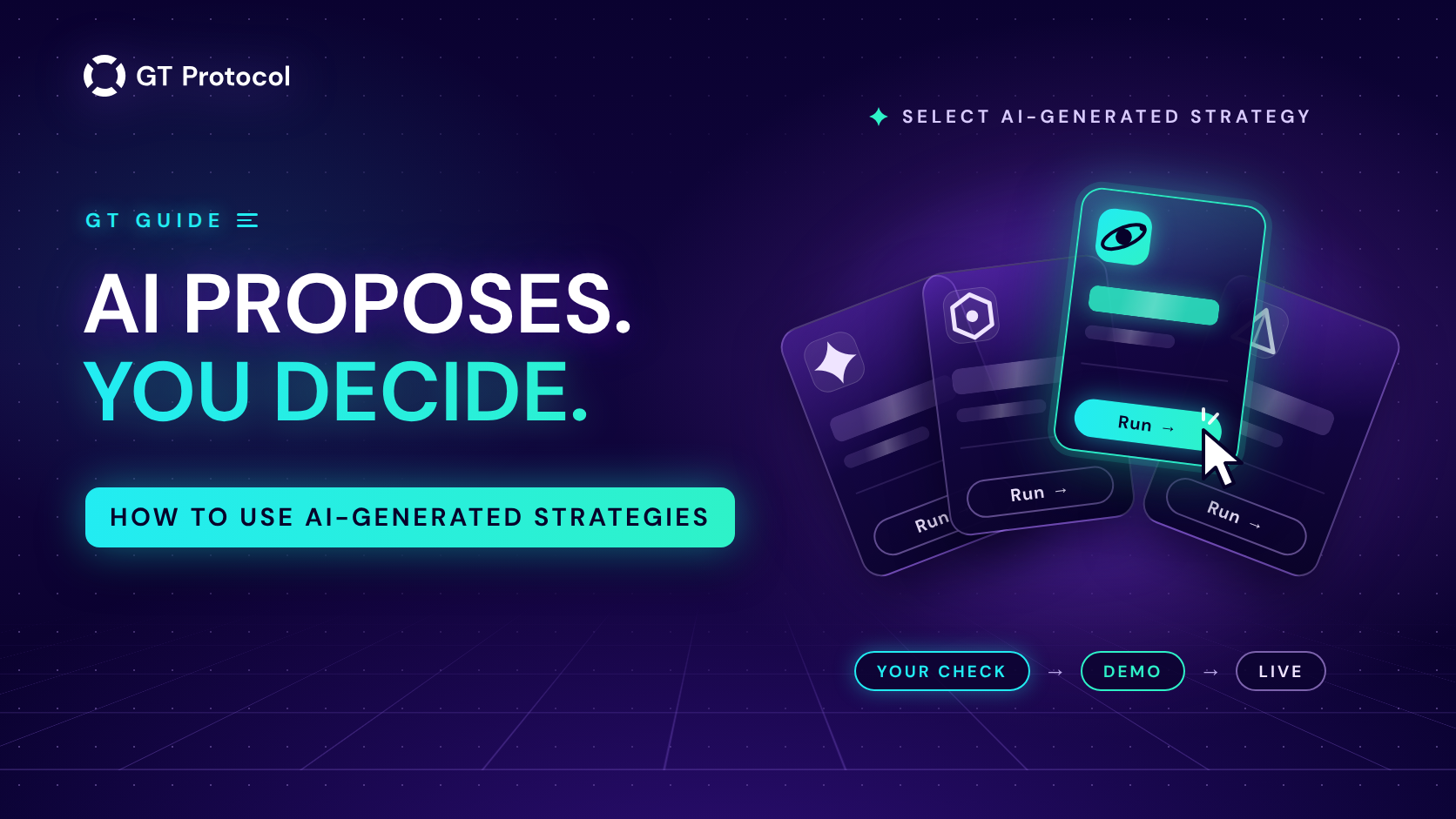
AI-generated strategies are ready-made futures strategies that four AI models, labelled OpenAI, Claude, Gemini and Grok, propose in GT App every hour. Each one arrives as a card with a backtest on the last 30 days of prices. One click loads its settings into the strategy builder, where you can check it, change it and launch it.
This guide covers what a card gives you, where to find the cards, what Run does, how to read the number on a card, how to make the strategy your own and how to launch it. It describes the app as of October 2026 and doesn’t tell you which card or coin to trade.
Table of contents
- What are AI-generated strategies in GT App?
- What does an AI-generated strategy give you?
- Where do you find AI-generated strategies?
- What happens when you press Run?
- How do you read the number on a card?
- How do you make an AI-generated strategy your own?
- How do you launch an AI-generated strategy?
- How is an AI card different from other ways to start?
- Frequently asked questions
What are AI-generated strategies in GT App?
Every hour, each of the four models looks at the Binance futures market, picks a coin and a candle timeframe, and proposes a complete set of strategy settings. The proposal is backtested on price history, and the model gets to improve it from the result. GT App then re-tests each model’s ideas from the past day on the last 30 days of prices and shows the best one as a card.
A card shows three things:
- The model, by its logo.
- A percentage: the profit of that 30-day backtest as a share of the strategy’s capital, after trading fees and slippage.
- The pair the strategy trades, next to a Run → button.
Behind the card is a whole strategy: the timeframe, the direction (long or short), the entry signal, usually Bollinger Bands, the start order, the safety orders, take profit, stop loss and leverage. Only strategies that made a profit in their 30-day test become cards, and each card trades a different coin. A model with nothing in profit at the moment has no card, so the row can hold fewer than four.
What does an AI-generated strategy give you?
- A first idea, without the blank page. The hardest part of building a strategy is the starting point: which coin, which candles, how far to put the target. Each card answers all of it at once, with settings you can test.
- The test before the decision. The backtest is already done. One click shows every trade the strategy made over the month on a price chart, with its win rate and profit, so you judge the idea by how it traded rather than by how it sounds.
- Nothing hidden. Every setting the card was tested with lands in the builder’s panel, where you can read it and change it. The backtest redraws within a second of each change.
- Several takes on today’s market. The row is refreshed every hour, and the cards come from different models on different coins, so you can compare their ideas side by side in a minute.
- One screen from idea to launch. The same screen tests, optimizes and launches the strategy: in Demo, free and without a plan, or live on your own exchange.
Where do you find AI-generated strategies?
- Sign in to GT App and open Create Strategy in the side menu, just above My Strategies. Without a plan the screen is titled Create Demo Strategy; with one, Create Futures Strategy.
- The first block on the screen, Select AI-generated strategy, holds the cards. On a computer they stand in a row at the top. On a phone, swipe the row sideways to see them all.
- If the block reads “No generated strategies are available right now.”, no model has a strategy in profit at that moment. The row is refreshed every hour.
The same cards appear on GT AI Backtest, our free backtesting site, which runs without an account; Free AI Crypto Backtesting: Test Any Strategy in Seconds covers it. This guide follows the app, where a card can go all the way to a running strategy.
What happens when you press Run?
Press Run → on a card, and the builder takes on everything the card was tested with:
- all of its settings, from the pair and the timeframe to the stop loss and leverage;
- the exchange, Binance, because the cards are built and tested on Binance futures prices;
- the test window, Last 1 Month, the same 30 days the card was measured on;
- the capital the card was tested with.
The second block, Backtest results, then shows the card’s own run. The line above the numbers names the model and gives the pair, the timeframe and the window. Five tiles follow, Trades, Win rate, Avg per trade, PnL (%) and PnL (USDT), and under them a price chart with every entry and exit marked.
If the card uses a setting your plan doesn’t include, the app applies the card without it, names what it left out in a short message that starts with “Applied without”, and re-runs the backtest. That way the numbers on screen are for the settings you would actually launch.
How do you read the number on a card?
The percentage on a card tells you how the idea did over the past 30 days. It doesn’t tell you what the strategy will make next month, for three reasons:
- It’s the best of many tries. A card is the strongest of the model’s ideas from the past day, picked because it suited this very month. Its other ideas did worse, and some of them lost money.
- It’s one month of one market. The conditions that made a strategy look good can be over by the time you launch it.
- It moves every hour. The 30-day window slides forward with each refresh, so the same card can show a different number tomorrow, or drop out of the row.
So read a card as a lead worth checking. Five checks take a couple of minutes, all on the same screen:
| Check | Where | Why |
|---|---|---|
| Number of trades | Trades tile | A big result from a handful of trades can rest on two or three lucky deals |
| A longer window | Date Range | Last 3 Months or Last 6 Months shows whether the idea held up beyond one month |
| The chart | Backtest results | Shows whether the profit built up steadily or came in one burst |
| The coin | Pair on the card | A small coin can swing far harder than BTC or ETH, in both directions |
| Leverage and stop loss | Settings panel | Leverage multiplies every move; the stop loss caps what one deal can cost |
A card that still holds up on a longer window, with a fair number of trades and a stop loss you can live with, is a better candidate for Demo than the card with the biggest number.
How do you make an AI-generated strategy your own?
A card is a starting point, not a package you have to take whole. Change any setting in the panel and the backtest redraws; from then on, the line above the results reads “Your strategy” instead of the model’s name.
- Set your own capital. Run brings in the capital the card was tested with. Move the Enter trading capital slider in the third block to the amount you plan to use: the backtest re-runs on it, and a live strategy will trade with that amount.
- Fit the exits. Move the take profit and the stop loss and watch how the number of trades and the win rate respond. How to Set Take Profit on a Trading Bot in GT App explains how the target is counted.
- Press Optimize. It tries other directions, take profits, stop losses and timeframes on the same history and applies the best version it finds. Your capital, leverage and order sizes stay as they are. How to Optimize a Crypto Trading Bot in One Click shows how it works.
- Turn the leverage down if the card uses more than you want. Lower leverage makes every move of a deal count for less, in both directions, and the backtest shows what that does to the result.
The builder offers two entry signals, Bollinger Bands and KDJ, and the cards usually come with the first. How to Use Bollinger Bands on a Trading Bot in GT App explains what that entry waits for before it opens a deal.
How do you launch an AI-generated strategy?
The third block, Activate strategy, sums up what will be created, from the pair and the exits to the margin and the test window, and offers one button. Which one depends on your account:
| Your account | Button | What happens |
|---|---|---|
| No plan | Launch trading | The strategy starts in Demo, on live prices with a virtual balance |
| A plan, no exchange connected | Connect Exchange | The strategy is saved and you go to connect your exchange; the settings are kept |
| A plan and a connected exchange | Review and Start Trading | A live strategy is created on your exchange and waits for its entry signal |
A few things to know about each path:
- Demo opens deals on live prices with paper money. If it is your first strategy of your own, the first deal opens straight away, so there is something to watch from the start.
- Live strategies from this screen use isolated margin: the strategy trades with the capital from the third block and doesn’t draw on the rest of your futures balance. If more than one of your exchange accounts can take it, a window asks which one to use.
- Either way, the new strategy appears in My Strategies under the name of its pair. You can rename it and change its settings later on its own screen, and with @gt_agentbot linked, Telegram tells you when each deal starts and ends.
Watch a card in Demo before you put money on it. A backtest replays the past; Demo shows how the strategy behaves on live prices. Backtesting vs Paper Trading: Which Test to Trust? explains why both tests matter.
How is an AI card different from other ways to start?
GT App gives you three starting points for a strategy, and the AI cards are the fastest way to a tested idea:
| Start from | You get | Fits if |
|---|---|---|
| An AI card | A complete futures strategy with its backtest already on screen | You want a tested idea to study, adapt or compare |
| Your own settings | The same builder, every field set by you | You already know the coin and the rules you want to test |
| Build me a strategy in Telegram | A strategy @gt_agentbot builds from live data, with launch buttons in the chat | You’d rather ask in a chat, or you want a spot strategy |
Optimize works with the first two: it starts from whatever is on the screen and looks for a better version. AI Trading Agent in Telegram: What It Can and Can’t Do shows the third route.
Frequently asked questions
Will an AI-generated strategy make the profit shown on its card?
Nobody can promise that. The card shows how the best of a model’s recent ideas did over one past month. Live results depend on the market ahead, and any strategy can lose money. That’s why the checks above, and Demo, come before real money.
Why are there fewer than four cards?
Only strategies that made a profit in their 30-day test become cards, and each card trades a different coin. If a model has nothing in profit at the moment, it has no card. When no model has one, the block says “No generated strategies are available right now.” Check back after the next hourly refresh.
How often do the cards change?
Every hour. New ideas arrive and every card is re-tested on the latest 30 days, so the numbers, the coins and the order of the cards can change. A strategy you have already launched keeps its own settings and doesn’t change with the cards.
Can I try a card in Demo if my account has a plan?
Yes. Open Create Demo Strategy on My Strategies: it opens the same screen with the same cards, and its button starts a demo. On accounts created before 20 August 2026 that button opens the classic demo form instead; set the card’s values there by hand, using the summary in the builder’s third block.
Can I use a card on Hyperliquid?
The cards are built and tested on Binance futures, so Run sets the exchange to Binance. You can switch the exchange to Hyperliquid afterwards and choose a pair Hyperliquid lists. The builder then re-runs the backtest on Hyperliquid’s prices, and the result is your own version of the strategy rather than the card’s.
Does Advanced settings keep the card’s settings?
No. Advanced settings opens the full strategy form with its own defaults. To keep a card’s strategy, launch it from the builder and fine-tune it afterwards in Strategy settings on the strategy’s own screen.
Is an AI-generated strategy investment advice?
No. The cards are produced by software from market data and show the best of several tries on recent history. They are starting points to test, not recommendations. This article is published by GT Research for information. GT Protocol provides software, not financial, investment, tax or legal advice, and every trading decision is your own.
Where to start
Open Create Strategy in GT App and press Run on two cards. Compare their trades and charts, then switch Date Range to Last 3 Months on the one you like and see how it holds up. Launch it in Demo and watch it trade on live prices before you put any money behind it. New to the app? Four Steps from Sign-Up to Real-Money Trading in GT App shows where this fits.
This article is published by GT Research for information. It describes how AI-generated strategies work in GT App, and it is not financial advice. Nothing here is a prediction or a promise of returns. The percentages on the cards, backtests and demo results are simulations on past or live prices and don’t predict how a strategy will perform with real funds. Trading digital assets, and futures with leverage in particular, carries a risk of losing some or all of the funds committed. GT Protocol provides software, not financial, investment, tax or legal advice. OpenAI, Claude, Gemini and Grok are trademarks of their respective owners; naming them here doesn’t imply their endorsement. Binance and Hyperliquid are third-party platforms with their own terms, and GT App is not available in every jurisdiction; the Terms of Service list the restrictions.