
How to Set a Stop Loss on a Trading Bot in GT App
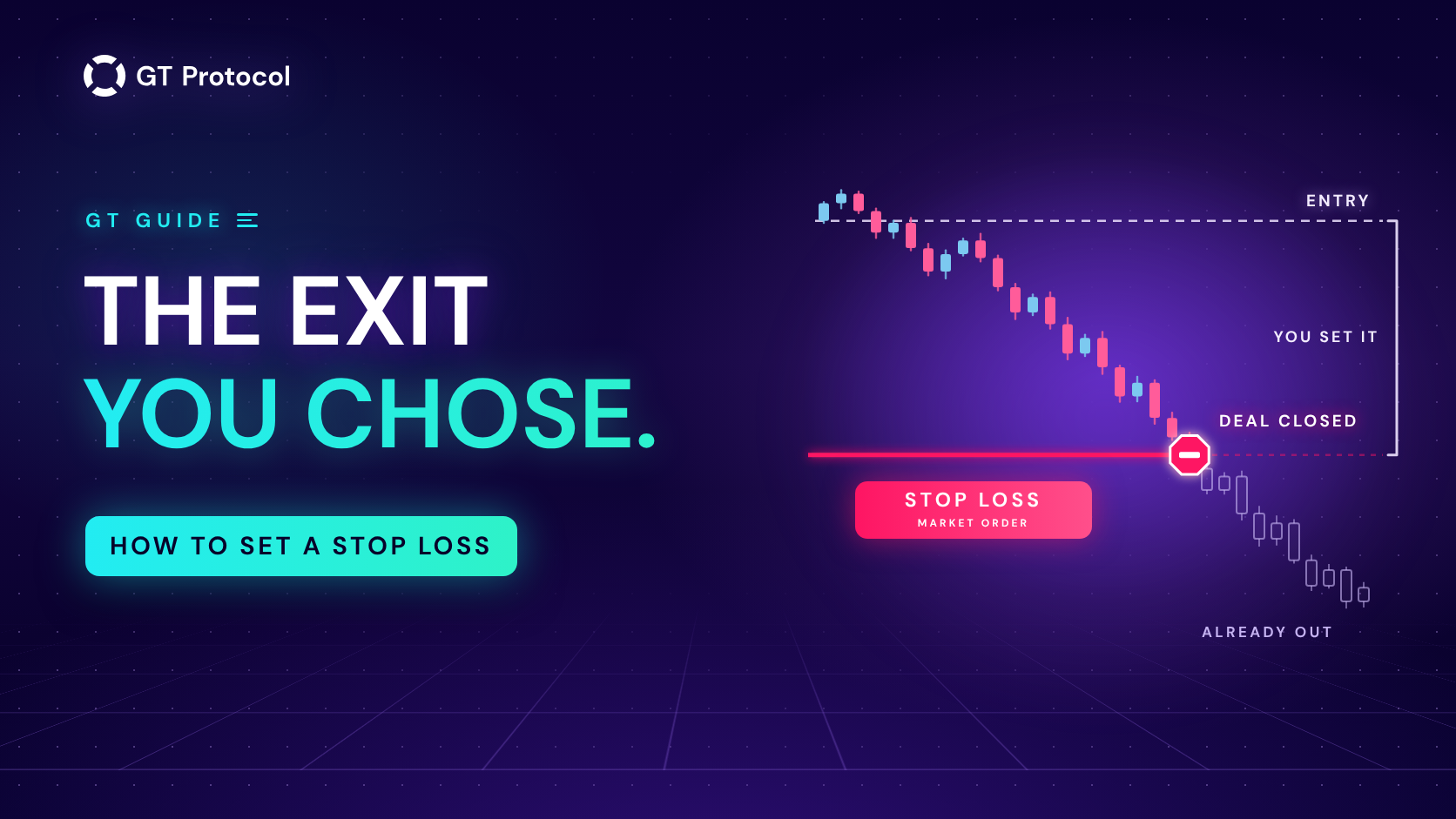
A stop loss is the price at which a GT App strategy closes a deal at a loss, so one bad trade can’t cost more than you planned. You set it as a percentage. The app counts it from your average entry, keeps it below your safety orders and closes the deal at market when the price gets there.
This guide shows where to set a stop loss, how it works with safety orders and leverage, what the strategy does after the stop fires and how to test a level before real money is at work. It describes the app as of November 2026 and doesn’t tell you which coin or settings to trade.
Table of contents
- What does a stop loss do in a GT App strategy?
- Where do you set a stop loss in GT App?
- How is the stop-loss price counted?
- What happens when a deal hits the stop loss?
- What does a stop loss mean on futures with leverage?
- How do you choose a stop loss?
- How do you know a deal closed at the stop loss?
- Frequently asked questions
What does a stop loss do in a GT App strategy?
A GT App strategy trades in deals. A deal opens with a start order, can add safety orders if the price moves against it, and ends at the take profit, at the stop loss or when you close it yourself. The take profit is the exit a deal is built around; the stop loss is the exit for the deal that doesn’t come back.
In the full strategy form the field is Stop loss (%); in Create Strategy it is Stop Loss (%), with the hint “Loss that ends the deal.” Three things decide how it behaves:
- It is your choice. A strategy can run without a stop loss, and then a deal that keeps going against you stays open until you act. In Create Strategy the switch starts on.
- It covers the whole deal. The percentage is measured from the average entry price, and when the stop fires, everything the deal holds is closed: the start order and every safety order that has filled.
- It doesn’t wait on the exchange. The take profit sits on your exchange account as a limit order. The stop loss doesn’t: when the price reaches it, the strategy cancels the take profit and closes the deal with a market order. In a fast market the fill can land a little past the stop price.
Where do you set a stop loss in GT App?
You choose the stop loss when you create a strategy, and you can change it later, including in the middle of a deal.
| Where | What you can do |
|---|---|
| Create Strategy | Switch Enable Stop Loss on or off and set Stop Loss (%) from 1% to 60%; the backtest redraws, and Optimize can change the level |
| Full strategy form | Switch Stop loss on, type Stop loss (%) from 0.1% to 99.99% and choose the Stop loss action |
| Strategy screen, open deal | Type a new percentage, type a Specific price for this deal, or drag the stop-loss line on the chart |
| Portfolio | Set Stop loss (%) for each coin separately |
The full form opens from Create Spot Strategy on My Strategies and from Advanced settings in the builder, and the same fields sit in Strategy settings on the screen of every strategy. When you switch Stop loss on there, the form fills in a starting value that already clears your safety orders and shows the approximate stop price next to the field.
A strategy launched from Create Strategy closes the deal at the stop and keeps running; to make it stop instead, change the Stop loss action in its Strategy settings. The builder is explained in Backtest and Launch a Futures Strategy in One Screen.
How is the stop-loss price counted?
The percentage is a move in the price against the deal, measured from the average entry price: below it on a long, above it on a short. When a deal opens, the average entry is the price of the start order. Every time a safety order fills, the average moves, and the stop loss moves with it.
A simple example in round numbers:
- A long deal buys 10 coins at $10.00 with a 20% stop loss. The stop sits at $8.00.
- The price falls, and a safety order buys 10 more coins at $9.00. The average entry is now $9.50, and the stop moves down to $7.60.
- If the price keeps falling to $7.60, the strategy closes all 20 coins at market. The loss is about 20% of the money in the deal, plus trading fees.
A stop loss you set as a specific price for an open deal doesn’t move: it stays where you put it until that deal ends.
With safety orders, the stop loss has to sit beyond the last one, or it would close the deal before the ladder had done its work. The full form works out how deep your ladder goes, step multiplier included, and won’t save a smaller percentage: “Stop loss must be at least …%: your safety orders go down to …% from the entry, the stop loss has to be below them.” Create Strategy checks the same before it charts a run. A specific price for an open deal is the exception: it can sit inside the ladder, and when the price reaches it, the strategy cancels the safety orders still waiting and closes the deal.
That makes the stop loss the floor under the whole ladder. The ladder decides how much money a deal can hold, the stop decides how far against it the price may go, and together they set the most one deal can lose. Safety Orders: How to Set Your First DCA Levels Correctly covers the ladder, and How to Set Take Profit on a Trading Bot in GT App the exit on the other side.
What happens when a deal hits the stop loss?
The deal closes at a loss, and the Stop loss action decides what the strategy does next. You choose it in the full form, under the percentage.
| Action | What happens | When it fits |
|---|---|---|
| Close deal | The strategy keeps running and opens its next deal by its entry rule | You want the strategy to carry on after a losing deal |
| Stop the strategy and close the deal | The strategy stops, and no new deal opens until you launch it again | You want to look at the market yourself before the next deal |
Close deal is the default. How soon the next deal comes depends on the entry: a signal entry waits for its next signal, while Immediate Start opens a new deal almost at once, and if the market is still falling, that deal starts a fresh ladder of its own. After Stop the strategy and close the deal, the strategy keeps its settings and history; press Launch on its screen when you want it to trade again.
What does a stop loss mean on futures with leverage?
On futures, the percentage is a move in the price from your average entry, not a share of your margin. Leverage changes what that move costs, not how far the price has to travel. A 10% stop loss at 3x leverage closes the deal when the price has moved 10% against it, and that move costs about 30% of the margin the deal uses, plus fees. At 5x, the same stop costs about 50%.
Leverage also brings the liquidation price closer to your entry. At 10x, a 10% move against the deal would use up all of its margin, and the exchange liquidates a position before that point, so a stop that far away never gets its turn. On a futures strategy, Deal details list the stop-loss price and the liquidation price together: keep the stop well before the liquidation price, and look again after safety orders fill, because they change both. Cross or Isolated Margin for a Futures Bot in GT App explains how much of your balance a futures deal can draw on.
How do you choose a stop loss?
There is no right number for every strategy. A stop loss trades how often deals end at a loss against how big each of those losses is, and it works together with the safety orders, the coin and the leverage.
| Tighter stop | Wider stop | |
|---|---|---|
| Deals stopped out | More often | Less often |
| Loss per stopped deal | Smaller | Larger |
| Room for safety orders | Less | More |
| Time for a bounce | Less | More |
A few habits make the choice less of a guess:
- Count the loss in money, at the full ladder. The percentage applies to everything the deal holds when the stop fires. On spot, with a 100 USDT start order and three filled safety orders of 100 USDT, a 15% stop loss closes a position that cost 400 USDT for a loss of about 60 USDT plus fees. Decide whether you accept that on one deal. How Much Money Do You Need to Start a Crypto Trading Bot? shows how a ladder adds up.
- Give the ladder room, on purpose. A stop just past the last safety order closes a deal soon after that order fills; a wider one gives the price more time to come back and makes every stopped deal cost more.
- Match it to the coin. A volatile coin covers the same percentage much more often than BTC does, so a stop that suits one market can be hit by ordinary swings on another.
- Test it, don’t guess. In Create Strategy, switch the stop on and off and try two or three levels while you watch the backtest: how many deals were stopped out, the worst deal, the total. Optimize tries stop-loss levels too, together with the take profit, direction and timeframe, and its message says what it changed, for example “stop loss added at …%” or “no stop loss”. A version without a stop can look better on a past window simply because that window had no fall deep enough to hurt, so decide first what one deal may lose. How to Optimize a Crypto Trading Bot in One Click and How to Read a Backtest Report show what to look at.
- Watch it in Demo. A demo strategy trades live prices with paper money, free and without a plan. One difference: in Demo the stop is counted from the start order’s price and doesn’t follow your safety orders, so a demo deal with safety orders is stopped out at a different price than a real one. Backtesting vs Paper Trading explains why both tests matter.
A stop loss caps one deal; it doesn’t make a strategy safe by itself. Judge a setup by how often its stop fired in the backtest as well as by its win rate.
How do you know a deal closed at the stop loss?
- In Telegram. With @gt_agentbot linked and Send All notifications on, “Stop loss order was executed” arrives, then “The deal has been closed with a loss” with the result. With Send All off, which is how every account starts, a stop-loss exit doesn’t reach Telegram; only the message that the strategy has stopped does, if the Stop loss action stops it. The switch is in Profile, in the AI Trading Agent block. Telegram Notifications in GT App lists what else arrives.
- On the strategy screen. While a deal is open, Deal details show the stop-loss price and the chart draws it as a line. Once the stop fires, the trading log records the stop-loss order.
- In Deals History. The finished deal moves to Deal history with the status COMPLETED, and its list of orders ends with the stop-loss order.
To move the stop of a deal that is already open, see How to Manage an Active Deal in GT App.
Frequently asked questions
Does GT App place a stop-loss order on the exchange?
Not in advance. The take profit waits on the exchange as a limit order, but the stop loss is sent when the price gets there, as a market order. That is why, in a fast market, the fill can be a little worse than the stop price.
Is the stop loss counted from my entry price or my average price?
From the average entry price. At the start of a deal that is the price of the start order; after each safety order fills, the stop moves with the new average. A specific price set for an open deal stays put. In Demo, the stop is counted from the start price.
Why won’t the form accept my stop loss?
With safety orders on, the stop loss has to sit beyond the last one, and the message tells you how deep your ladder goes. Raise the percentage, or use fewer or closer safety orders. Without safety orders, any value from 0.1% to 99.99% is accepted.
Can I change the stop loss while a deal is open?
Yes. A new percentage saved in Strategy settings applies to the open deal straight away, while changes to safety orders wait for the next deal. For one deal you can also type a specific price or drag the stop-loss line on the chart; it needs a gap of at least 0.3% from the current price, and when the deal ends, the strategy goes back to its percentage.
Is Smart Exit a stop loss?
No. Smart Exit closes a deal early when it is close to its take profit and the market starts to turn. It never closes a deal that is in a loss.
Is this article investment advice?
No. It is published by GT Research for information. GT Protocol provides software, not financial, investment, tax or legal advice. The examples here show how the setting works; they are not recommendations or forecasts, and every trading decision is the reader’s own.
Where to start
Open Create Strategy in GT App, pick a pair you know and switch Enable Stop Loss on and off while you watch the backtest change. Try a level or two, press Optimize and read what it changed, then press Run Demo. Before real money is at work, work out what the stop costs at the full ladder and choose the Stop loss action. If you are new to the app, Four Steps from Sign-Up to Real-Money Trading in GT App shows where this fits.
This article is published by GT Research for information. It describes how the stop loss works in GT App, and it is not financial advice. Nothing here is a prediction or a promise of returns, and the numbers in the examples are illustrations, not results or recommended settings. A stop loss closes a deal with a market order, and in a fast market the fill can be worse than the level you set. Backtest and demo results are simulations and do not predict how a strategy will perform with real funds. Trading digital assets, and futures in particular, carries a risk of losing some or all of the funds committed. GT Protocol provides software, not financial, investment, tax or legal advice. Binance and Hyperliquid are third-party platforms with their own terms, and GT App is not available in every jurisdiction; the Terms of Service list the restrictions.