
Cross or Isolated Margin for a Futures Bot in GT App
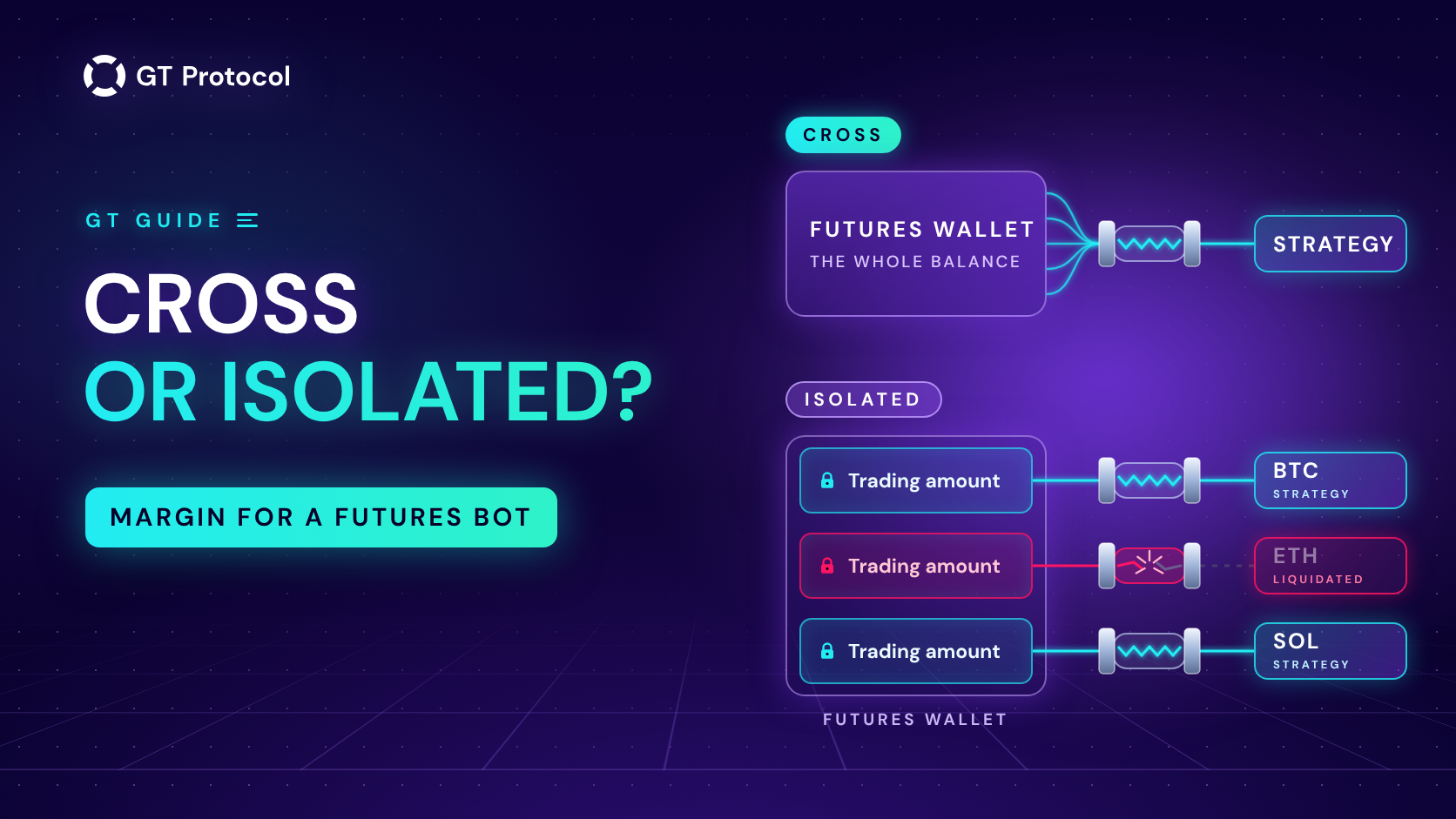
A futures strategy in GT App runs on one of two margin types. With Cross, the strategy’s position can draw on your whole futures balance. With Isolated, the strategy gets its own budget, the Trading amount, and a liquidation costs only that position’s margin. The choice also decides how many futures strategies one exchange account can hold.
This guide covers where the setting sits, how GT App counts the Trading amount, why one exchange connection takes a single Cross strategy but several Isolated ones, how far leverage goes, and where a running deal shows its margin and liquidation price. It describes GT App as of October 2026 and doesn’t tell you which margin type or leverage to use.
Table of contents
- What is the difference between Cross and Isolated margin?
- Where do you choose the margin type?
- How does the Trading amount work?
- Why does one exchange account take only one Cross strategy?
- How high can leverage go?
- Where do you see a deal’s margin and liquidation price?
- Frequently asked questions
What is the difference between Cross and Isolated margin?
Margin is the part of your futures balance that the exchange holds as collateral for an open position. Leverage sets the ratio: a 1,000 USDT position at 10x needs 100 USDT of margin. If the price moves against the position far enough to use up what backs it, the exchange closes the position at the liquidation price.
The two margin types differ in what backs the position:
- Cross. The position can draw on the free balance of the whole futures wallet. While the wallet has money, the position stays open, so its liquidation price sits further from the entry. If it is liquidated anyway, the loss can take the futures balance with it.
- Isolated. The position is backed by its own margin only. For the same position the liquidation price is closer, but a liquidation costs that margin and leaves the rest of the futures balance alone. In GT App the strategy’s ceiling is its Trading amount, a budget you set in the form.
| In short | Cross | Isolated |
|---|---|---|
| Backed by | The whole futures balance | The Trading amount |
| A liquidation costs | Up to the whole balance | That position’s margin |
| Liquidation price | Further from the entry | Closer to the entry |
| One connection holds | One futures strategy | Several, one per pair |
| Selected by default | Yes | No |
The margin type doesn’t change the strategy’s settings: the start order, safety orders, take profit and stop loss are set the same way in both. It changes how much of your balance stands behind the position, how many strategies can share the account and, with Isolated, the budget the strategy has to stay within.
Where do you choose the margin type?
The margin type lives in the full strategy form for real futures. Depending on your account, Create Futures Strategy in My Strategies opens either that form or a screen that backtests the settings before you launch them. The backtest screen has no margin type, and a real strategy created there runs in Cross; to choose Isolated, open the full form with Advanced settings at its top right.
In the full form, Margin type is the second field, under the strategy name: two buttons, Cross and Isolated, with Cross selected for a new strategy. Its hint sums the difference up: with Cross the entire balance of the futures wallet can be used for trading, with Isolated only the amount you specify. Choosing Isolated adds the Trading amount field right under it.
Connect exchange, further down, lists only the connections that can take the strategy with the margin type you picked. When none can, the form says “You do not have an available exchange for crossed margin. Please connect a new exchange.” or the same about isolated margin. The rules behind that list are explained below.
While the strategy has an open deal, the margin type is locked, and hovering over it shows “You can change the margin type only when the strategy has no active trades.” Change it after the deal ends; the next deal opens with the new type.
A demo strategy has no margin type to choose: it trades a virtual balance, with no exchange account behind it. Demo also never liquidates a position, so its Deal details have no liquidation price, and a demo can’t show you where a real position would be liquidated.
How does the Trading amount work?
The Trading amount is the most this strategy can commit as margin, in the pair’s quote currency: USDT on Binance, USDC on Hyperliquid. The money stays on your exchange account. GT App counts the budget and doesn’t let the strategy place an order that would take it past it.
When you save, the form checks three things:
- the Trading amount is at least 20;
- it covers the margin of the start order, the start order divided by the leverage; if it doesn’t, the form asks you to “Increase the trading amount so there are enough funds to cover the initial margin required for the start and safety orders.”;
- together with the Trading amounts of the other Isolated strategies on that connection, it fits into your futures balance; if it doesn’t, the message is “The trading amount must be less than the total balance of the exchange.”
The save check looks at the start order only. Safety orders are checked during the deal, one at a time, against what is left of the budget after the orders already placed:
- If the start order doesn’t fit, the deal is cancelled and the strategy stops, with the notification “Exchange account has insufficient balance for requested action.”
- If a safety order doesn’t fit, GT App cancels it together with the safety orders queued after it, and the deal goes on with the orders already filled.
So a Trading amount that only passes the save check can leave the deal without its safety orders. Size it for the whole ladder: the start order plus every safety order you want available, martingale included, divided by the leverage. A 50 USDT start order and four 50 USDT safety orders at 5x make a 250 USDT position and need 50 USDT of margin. How Much Money Do You Need to Start a Crypto Trading Bot? shows how to add up a ladder with martingale.
The budget then moves with the results. Each closed deal adds its profit to the strategy’s budget or takes its loss from it, trading fees and funding included. The form keeps showing the number you entered, so after a few deals the strategy works with a different sum than the one on the screen. If losses leave too little for the next start order, that deal doesn’t open and the strategy stops. Editing the Trading amount starts the budget again from the new value, and the results so far no longer count toward it.
Why does one exchange account take only one Cross strategy?
A Cross strategy can use the whole futures balance, so GT App keeps the exchange connection for that strategy alone. Isolated strategies can share a connection, because each one spends only its own Trading amount. The form applies four rules:
- A connection with a Cross strategy on it, even a stopped one, isn’t offered for any new futures strategy, Cross or Isolated, until you delete that strategy.
- A connection with Isolated strategies is offered for another Isolated one on a pair that isn’t taken yet. Taken pairs are greyed out in the pair list, with the hint “This pair is already in use on this exchange connection.”
- Cross and Isolated strategies don’t share a connection.
- The backtest screen and Launch real on a demo card create Cross strategies, so they only offer a connection with no futures strategy on it at all.
When no connection fits, another one solves it: a second exchange account or a Binance sub-account connected to GT App. Your plan limits both the futures strategies and the connections:
| Plan | Futures | Connections |
|---|---|---|
| x10, $5 | 2 | 2 |
| x3 | 10 | 20 |
| x5 | 15 | 20 |
| Unlimited | 25 | 20 |
Stopped strategies count toward the limit until you delete them. Spot strategies have limits of their own and use the spot wallet, so they don’t take a futures slot on the connection.
How high can leverage go?
The Leverage control is a slider with a number box and − and + buttons. Under it the form shows Initial margin: the start order divided by the leverage, the margin that order takes. A new strategy in the full form starts at 5x.
How high the + button goes depends on three things:
- Your plan. Up to 20x on the $5 x10 plan and up to 50x on x3, x5 and Unlimited; the plan cards add “x125 upon request”.
- The coin, on Hyperliquid. Each coin has its own maximum. On 12 October 2026 it was 40x for BTC, 25x for ETH, 20x for SOL and XRP, and 3x for about half of the coins on the exchange. The full form reads these limits from Hyperliquid and stops at the coin’s maximum.
- The form, on Binance. In the full form the leverage control stops at 20x on every plan; the backtest screen offers leverage up to your plan’s limit.
The + button greys out at the limit without saying which limit it is.
Binance has limits of its own for each pair: the higher the leverage, the smaller the position it allows. If Binance refuses the leverage when a deal starts, GT App cancels the deal, stops the strategy and sends “Leverage error. Please try to use a smaller leverage. Such a high leverage is not allowed for this trading pair.” A start order too big for the chosen leverage stops the strategy the same way, with “Start order amount is greater than maximum allowed amount for selected leverage.” On Hyperliquid, keep the leverage within the coin’s maximum: the exchange refuses anything above it.
A leverage change applies from the next deal; the open deal keeps the leverage it started with. Higher leverage lowers the margin each order needs and brings the liquidation price closer to the entry.
Where do you see a deal’s margin and liquidation price?
On the strategy page, in Deal details under the price bar. For a real futures deal the list includes Position margin and Liquidation price, next to the position size, entry price, zero profit price and take profit. Position margin is how much of your balance the position holds as margin. The liquidation price comes from the exchange’s data on your position, and GT App updates it during the deal. The Futures tab of the Deals page has a Liquidation price column for all your futures deals at once.
With Isolated, both numbers depend on this position alone. With Cross, the liquidation price also depends on the rest of the futures wallet, so it moves when that balance changes: a deposit, a withdrawal, a trade you make by hand on the same account.
Look at both after anything that changes the position: a filled safety order, a manual safety order, a new leverage on the next deal. Manual safety orders and the rest of the strategy page are covered in How to Manage an Active Deal in GT App, and How to avoid liquidation in our Knowledge Base explains what moves the liquidation price.
If Binance liquidates the position, GT App sends “Your position was liquidated by the exchange at a rate” with the price and stops the strategy.
Frequently asked questions
Can I switch a running strategy from Cross to Isolated?
Not during a deal: the margin type is locked until the deal ends, and the next deal opens with the type you chose. Switching to Isolated also needs a Trading amount.
Does Isolated margin protect my whole balance?
It keeps a liquidation of this strategy’s position away from the rest of your futures balance. It doesn’t stop the strategy from losing its own Trading amount. On Binance, Isolated works only in Single-Asset Mode: in Multi-Assets Mode Binance keeps positions in Cross, so check that setting on Binance before you count on Isolated.
Can Cross and Isolated strategies share one exchange account?
No. A connection holds either one Cross strategy or Isolated strategies, one per pair. To run both, connect a second account, such as a Binance sub-account.
Can I trade the same pair by hand on the account a strategy uses?
Not while the strategy trades that pair. At the start of every deal GT App sets the margin type and leverage for the pair on your exchange account. If the pair already has an open position or open orders there, the deal is cancelled and the strategy stops with “You already have an open position. The deal has been canceled.” or “You already have an open order. The deal has been canceled.”
Does profit stay in the Trading amount?
Yes. Each closed deal adds its profit to the strategy’s budget or takes its loss from it, fees and funding included. The form keeps showing the amount you entered, and editing it starts the budget again from the new value.
Why does the leverage stop at 20x on my x3 plan?
In the full form on Binance the leverage control stops at 20x on every plan. The backtest screen offers your plan’s limit, up to 50x on x3. On Hyperliquid the coin’s own maximum applies, and for many coins it is lower than 20x.
Is this article investment advice?
No. It is published by GT Research for information. GT Protocol provides software, not financial, investment, tax or legal advice. The amounts and leverage values here are examples of how the app counts margin, not recommendations, and every trading decision is the reader’s own.
Where to start
Choose the margin type before you size the orders, because it decides what the ladder is measured against. With Cross, compare the ladder’s margin with your whole futures balance and keep the connection for that one strategy. With Isolated, set a Trading amount that covers the whole ladder at the leverage you chose and leave the rest of the balance for the other strategies on that connection. When the first deal opens, find the position margin and the liquidation price in Deal details. If you are new to futures in GT App, Four Steps from Sign-Up to Real-Money Trading in GT App shows where the plan and the exchange connection fit in.
This article is published by GT Research for information. It describes how GT App handles margin and leverage on futures strategies and is not financial advice. Trading digital assets, and futures with leverage in particular, carries a risk of losing some or all of the funds committed. GT Protocol provides software, not financial, investment, tax or legal advice. Binance and Hyperliquid are third-party platforms with their own terms, and GT App is not available in every jurisdiction; the Terms of Service list the restrictions.