
How to Choose Leverage for a Futures Bot in GT App
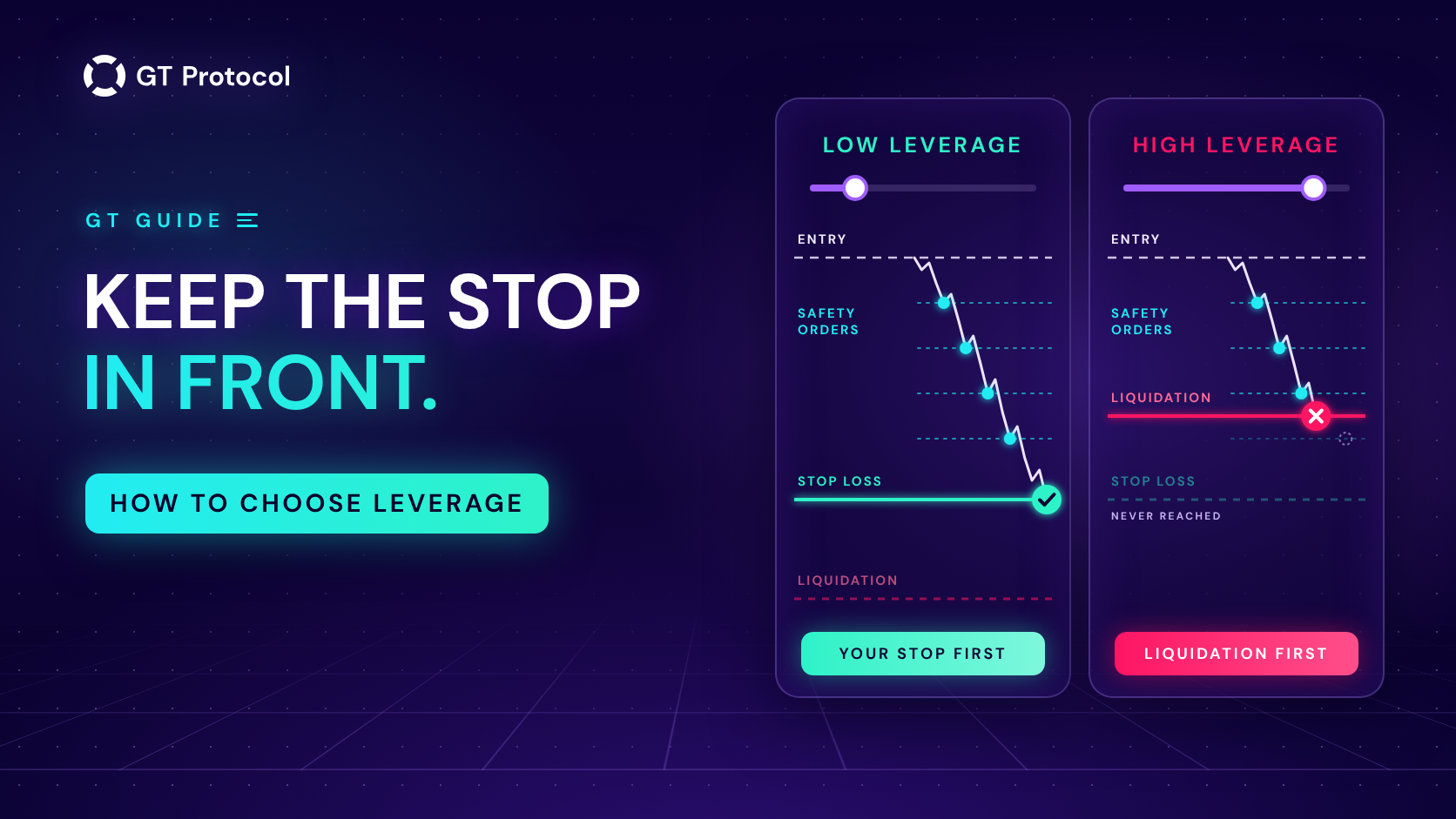
Leverage in a GT App futures strategy sets how big a position each dollar of margin holds and how far the price can move against a deal before the exchange liquidates it. It doesn’t make a strategy smarter. Chosen well, it leaves your stop loss and safety orders room to do their work first.
This guide shows where you set leverage, what it changes in each part of the app, how to fit it to your safety orders and stop loss, and how to check it before real money is at work. It describes the app as of November 2026 and doesn’t tell you which leverage to trade.
Table of contents
- What does leverage change in a GT App strategy?
- Where do you set leverage in GT App?
- Does a higher leverage mean a bigger profit?
- How close is liquidation at each leverage?
- How do you fit leverage to your safety orders and stop loss?
- How do you check a leverage before real money is at work?
- What happens when the leverage is too high?
- Frequently asked questions
What does leverage change in a GT App strategy?
Leverage exists only on futures: a spot strategy has no leverage field, a futures strategy, real or demo, has one. The exchange lets you hold a position bigger than the money behind it, and that money is the margin: at 5x, a 500 USDT position needs 100 USDT of margin.
Three things move when you change the number:
- Margin. An order locks its position size divided by the leverage. For the same position, a higher leverage leaves more of your balance free.
- Distance to liquidation. The margin is what absorbs a loss. The less margin stands behind a position, the shorter the move against it that the exchange tolerates before it closes the position by force.
- Sometimes the position itself. Whether a higher leverage also makes the position bigger depends on where you set the order size. That part trips people up, so it has its own section below.
Take profit and stop loss don’t change with leverage. Both are a price move from your average entry, and leverage only changes what that move is worth against the margin. At 10x, a 1% take profit is about 10% of the margin the deal uses, and a 5% stop loss is about 50% of it. How to Set a Stop Loss on a Trading Bot in GT App and How to Set Take Profit on a Trading Bot in GT App go through both in detail.
Where do you set leverage in GT App?
Create Strategy, in the sidebar, is the screen that builds a strategy and backtests it as you go. The slider is labelled with your range, for example Leverage (x1–x20), with the hint “How much the exchange multiplies the position.” Just above it, under Start Order Size, a line reads Margin: $… → Position: $…, and the bottom of the panel always shows Total Margin Required and Total Position Value for the whole ladder of orders. A new strategy there starts at x4.
The full strategy form opens from Advanced settings and whenever you edit a strategy. Its Leverage control is a slider with a number box. Under it, Initial margin shows how much of your balance the start order would take. When an order is set in USDT, the field also carries the hint “Position size · margin $… at x…”, so you can see both numbers at once.
How high you can go depends on your plan: up to 20x without a plan and on the $5 x10 plan, up to 50x on x3, x5 and Unlimited. On Hyperliquid each coin has its own maximum, and in the full form on Binance the slider stops at 20x on every plan. Cross or Isolated Margin for a Futures Bot in GT App lists these limits with examples.
A new leverage applies from the next deal. The deal that is open keeps the leverage it started with.
Does a higher leverage mean a bigger profit?
Not by itself. It depends on what the amount you typed means, and in GT App that differs by place:
| Where | Amount is | More leverage |
|---|---|---|
| Full form, USDT | The position | Less margin, same position |
| Full form, USDT % | Margin | Bigger position |
| Create Strategy | Margin | Bigger position |
In the full form with the Amount type in USDT, the amount is the size of the position. A 200 USDT start order opens a position worth about 200 USDT at 2x and at 10x alike. Leverage changes only the margin, 100 USDT or 20 USDT, and how close the liquidation price sits. A 1% move earns or costs the same dollars either way. Raising the leverage here never adds profit; it frees margin and moves liquidation closer.
In the full form with USDT %, the percentage is a share of your balance used as margin, and the position is that margin times the leverage. At 10x, an order of 1% opens a position worth 10% of the balance.
In Create Strategy, Start Order Size is margin, in dollars or as a share of the backtest capital. The default 120 dollars at x4 reads Margin: $120 → Position: $480, and when you launch, the strategy trades the same 480 dollar position the screen showed. Here, and with USDT %, a higher leverage makes the position bigger, so gains, losses and fees grow with it.
In every case a higher leverage brings liquidation closer. How Much Money Do You Need to Start a Crypto Trading Bot? shows how the margin adds up across a whole strategy.
How close is liquidation at each leverage?
With Isolated margin, the position’s own margin is all that stands behind it. That margin covers a price move of about 100% divided by the leverage, counted from the average entry price:
| Leverage | Margin covers a move of about |
|---|---|
| 2x | 50% |
| 3x | 33% |
| 5x | 20% |
| 10x | 10% |
| 20x | 5% |
| 50x | 2% |
The exchange liquidates a little before that point: it closes the position while part of the margin, the maintenance margin, is still left. That part is small on the largest coins and larger on smaller ones. On Hyperliquid it is half the margin a coin needs at its own maximum leverage, so on a coin capped at 3x, a 3x position is liquidated after a move of about 20%, not 33%.
With Cross margin, the free balance of your whole futures wallet also stands behind the position, so the liquidation price sits further away. The cost is that a losing deal can draw on that whole balance, and the liquidation price moves whenever the balance does. A strategy launched from Create Strategy runs on Isolated margin; in the full form you choose, and Cross is the default.
You don’t have to estimate the real number. On the strategy page, Deal details lists the Liquidation price of a live futures deal next to its position margin and the stop-loss price, and the Futures tab of the Deals page has a Liquidation price column for all your deals.
How do you fit leverage to your safety orders and stop loss?
Work from the stop loss, not from the leverage. The stop loss is the exit you planned; liquidation is the exit you didn’t. The leverage has to leave the stop in front.
- See how deep your ladder goes. With safety orders on, the stop loss has to sit beyond the last one, and the full form tells you how deep the ladder goes when the stop is too shallow. Create Strategy warns the same way and won’t launch until you fix it.
- Set the stop loss below the ladder. That is where you decide how much one deal may lose.
- Divide 100 by the stop loss percentage. The leverage has to stay below that number: a 12% stop needs less than about 8x. Stay well below it, because the maintenance margin and a fast market both eat into the gap.
- Check that the margin fits. In Create Strategy, Total Margin Required is the margin for the whole ladder. In the full form, the recommended balance and, with Isolated margin, the strategy’s Trading amount have to cover it.
An example in round numbers: a start order and four safety orders of 100 USDT each, 2.5% apart, so the ladder reaches 10% below the entry. The stop loss sits at 12%. Set in USDT in the full form, the full position is 500 USDT whatever the leverage, and on Isolated margin this is what the leverage changes:
| Leverage | Margin | Covers about |
|---|---|---|
| 3x | 167 USDT | 33% |
| 5x | 100 USDT | 20% |
| 10x | 50 USDT | 10% |
| 20x | 25 USDT | 5% |
At 3x and 5x the 12% stop closes the deal well before the exchange could. At 10x the margin runs out around a 10% move from the average entry, so the exchange liquidates the deal before the stop’s turn comes. At 20x the deal can be liquidated before the ladder has even filled.
On the way down every row gains or loses the same dollars for the same move, because the position is the same. What differs is the ending. At 3x and 5x the deal ends where you planned, on your stop loss, and with the Close deal action the strategy carries on. At 10x and 20x it ends earlier, at the exchange’s price: most or all of the margin behind the position is lost, and GT App stops the strategy.
Without a stop loss, nothing closes a losing deal except you or the exchange. The ladder then has to fit well inside the distance in the first table, and a long enough move still ends in liquidation under Isolated margin. Safety Orders: How to Set Your First DCA Levels Correctly explains how to space the ladder itself.
How do you check a leverage before real money is at work?
The backtest in Create Strategy. Leave every other setting alone and move only the leverage. Margin and position update at once, and the backtest reruns at the leverage you set, on the same Isolated margin a launched strategy gets. A deal the exchange would have liquidated ends there in the result too, as a losing trade.
GT AI Backtest, our standalone backtesting site, goes one step further: it labels every liquidated trade ”☠ Liquidation”, tells you how many trades were liquidated, and its margin panel shows an estimated liquidation price. Free AI Crypto Backtesting describes the site.
Demo. A demo strategy trades on real prices without money, so you can watch how the ladder fills and what the take profit is worth against the margin. Demo doesn’t liquidate positions, though: a demo deal keeps going where a real one would already have been liquidated. A demo that came through a deep drop at a high leverage proves nothing about liquidation; the arithmetic above does.
When the strategy goes live, open Deal details on the first deal and compare the Liquidation price with the stop-loss price. How to Manage an Active Deal in GT App shows where both live on the strategy page.
What happens when the leverage is too high?
The app and the exchange stop you in a few places:
- Above what Binance allows for the pair. Binance sets its own limits per pair: the higher the leverage, the smaller the position it accepts. If it refuses, GT App cancels the deal, stops the strategy and sends “Leverage error. Please try to use a smaller leverage. Such a high leverage is not allowed for this trading pair.” A start order too big for the chosen leverage stops the strategy with “Start order amount is greater than maximum allowed amount for selected leverage.”
- Above the coin’s maximum on Hyperliquid. The exchange refuses anything above it, so keep the leverage within the coin’s limit.
- Liquidation. If the exchange liquidates a position, GT App sends “Your position was liquidated by the exchange at a rate” with the price, and stops the strategy. The loss is the margin behind that position, or with Cross margin, whatever the futures balance had to cover.
Frequently asked questions
What leverage should I use?
No number fits every strategy. It follows from your stop loss and your ladder: divide 100 by the stop loss percentage, stay well below the result, and check that the margin fits your balance. This article doesn’t recommend a leverage, a coin or a stop loss.
Does a higher leverage cost more in fees?
Exchange fees and funding are charged on the size of the position, not on the margin. In the full form with amounts in USDT, the position doesn’t change with leverage, so neither do the fees. In Create Strategy and with USDT %, a higher leverage means a bigger position, and the fees and funding grow with it.
Can I change the leverage of a running strategy?
Yes. Save a new value in the strategy settings and it applies from the next deal. The open deal keeps the leverage it started with.
Is Isolated or Cross safer at the same leverage?
They protect different things. Isolated limits what one deal can lose to the margin behind it, which also puts its liquidation price closer. Cross pushes the liquidation price away by using the free futures balance, and that balance is what a bad deal can draw on. Cross or Isolated Margin for a Futures Bot in GT App compares them in full.
Is this article investment advice?
No. It is published by GT Research for information. GT Protocol provides software, not financial, investment, tax or legal advice. The examples here show how the setting works; they are not recommendations or forecasts, and every trading decision is the reader’s own.
Where to start
Open Create Strategy in GT App, keep every setting and move only the Leverage slider while you watch Margin → Position, Total Margin Required and the backtest result. Then set the stop loss below your ladder, divide 100 by it and pick a leverage well under that number. Run it in Demo to see the ladder at work, and before real money is involved, check the Liquidation price in Deal details. If you are new to the app, Four Steps from Sign-Up to Real-Money Trading in GT App shows where this fits.
This article is published by GT Research for information. It describes how leverage works in GT App, and it is not financial advice. Nothing here is a prediction or a promise of returns, and the numbers in the examples are illustrations, not results or recommended settings. Liquidation distances are approximate: the exchange’s maintenance margin, fees, funding and fast markets all move the real liquidation price, and Deal details shows the price the exchange reports. Backtest and demo results are simulations and do not predict how a strategy will perform with real funds; demo does not simulate liquidation. Trading digital assets, and leveraged futures in particular, carries a risk of losing some or all of the funds committed. GT Protocol provides software, not financial, investment, tax or legal advice. Binance and Hyperliquid are third-party platforms with their own terms, and GT App is not available in every jurisdiction; the Terms of Service list the restrictions.