
How to Buy a GT App Membership in Telegram (USDT/USDC)
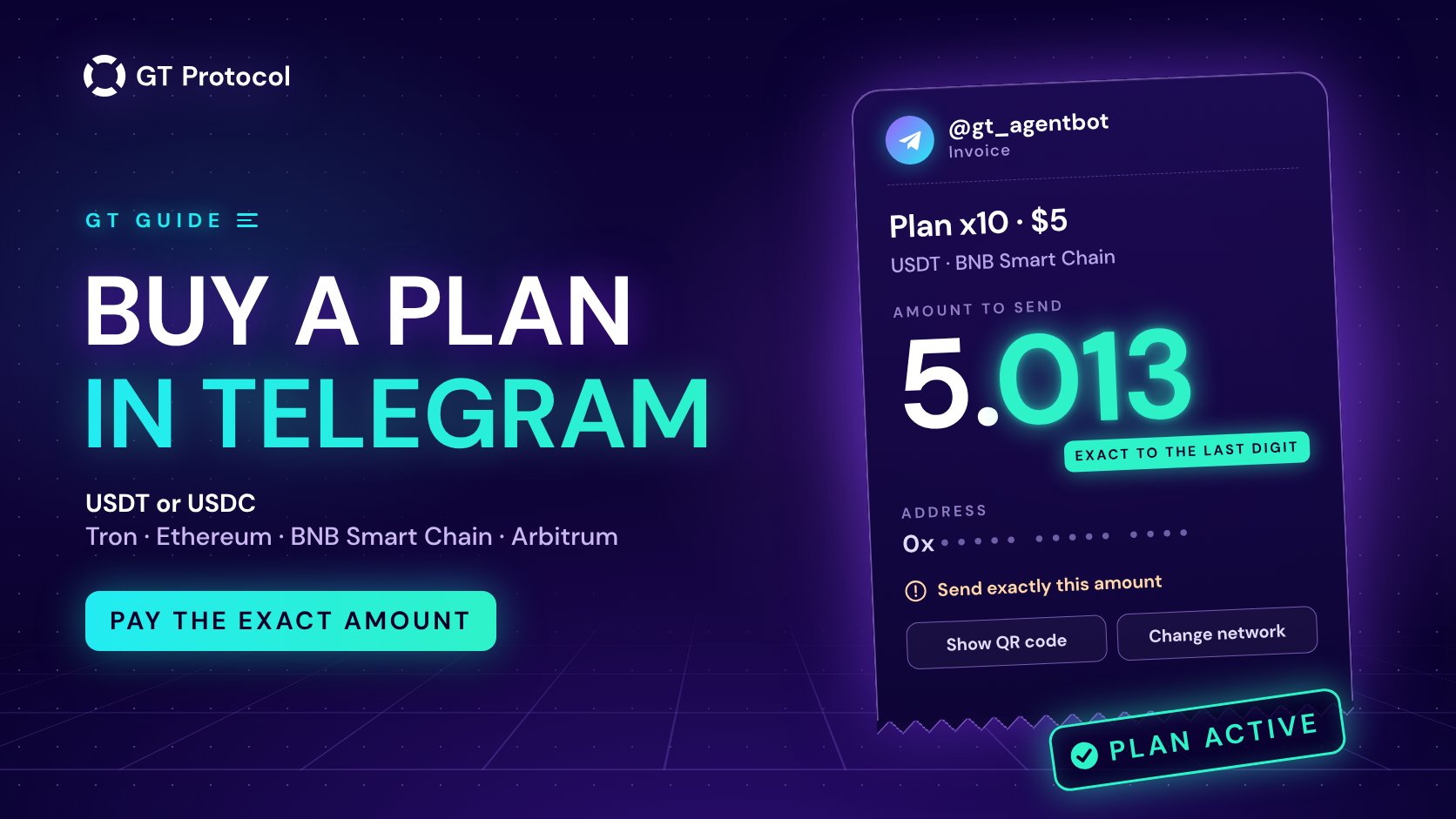
You can now buy a GT App membership without leaving Telegram. Send /membership to the GT App AI agent, @gt_agentbot, pick a plan, choose USDT or USDC and a network, and pay the exact amount shown on the invoice. The plan activates by itself once the network confirms the transfer, and the agent tells you in the same chat.
This guide walks through each screen of the purchase, the plans you can buy there, the networks and tokens the invoice accepts, how long activation takes, and what to do if a payment goes wrong. It describes the flow as it works in September 2026; screens may change as we add features.
Table of contents
- What do you need before you buy?
- How do you buy a plan in Telegram, step by step?
- Which plans can you buy in the agent?
- Which networks and tokens does the invoice accept?
- Why does the invoice ask for 5.013 and not 5?
- How long does activation take?
- What if the invoice expires or a payment goes wrong?
- What does the agent tell you once you have a plan?
- Is buying in Telegram different from buying in the app?
- How do you pay safely in Telegram?
- Frequently asked questions
What do you need before you buy?
Three things: a GT App account, the AI agent connected to it, and stablecoins in a wallet or on an exchange. The purchase happens inside your account, so the agent has to know which account is yours. If you haven’t connected it yet, open your Profile in GT App, tap Activate AI and press Start in the chat that opens with @gt_agentbot. Our guide to the AI trading agent in Telegram covers that step in detail. If you send /membership before connecting, the agent replies with those same steps instead of the plans.
For the payment itself you need USDT or USDC on one of four networks; the table further down lists them. If you pay from your own wallet, keep a little of that network’s coin for the network fee. If you pay from an exchange, the exchange charges its withdrawal fee instead.
How do you buy a plan in Telegram, step by step?
The whole purchase is a short run of screens in one chat, and most taps update the same message rather than posting a new one.
- Send /membership, or pick Membership plans in the agent’s menu.
- If you have never had a plan, the first screen offers Unlock for $5, the entry plan. See All Plans opens the full list.
- Pick a plan. Its card lists what the plan includes and its profit cap.
- Choose the token: USDT or USDC.
- Choose the network: Tron (TRC-20), Ethereum (ERC-20), BNB Smart Chain (BEP-20) or Arbitrum. Tron is not offered for USDC.
- The agent creates the invoice: the amount to send, the payment address and how long the invoice stays valid. Tap the amount or the address to copy it. Show QR code sends the address as a QR image in a separate message.
- Send exactly that amount, in the token and on the network you chose, from your wallet or exchange.
- Wait for the confirmation. The agent removes the invoice and sends a short animation with “Plan x10 is now active!” (or the plan you bought), with buttons to build a strategy or go back home.
Under the invoice there are also Change network, See all plans and Contact support, so you can switch the network or reach support without starting over.
Which plans can you buy in the agent?
The agent sells the same plans at the same prices as the Membership page in the app, and it takes names, prices and limits from the platform itself, so what you see in the chat is current. In September 2026 the list looks like this:
| Plan | Price | What you get |
|---|---|---|
| x10 | $5, one-time | $50 profit cap, 2 spot and 2 futures strategies at once, 2 API connections |
| x3 | $100 | $300 profit cap, 10 spot and 10 futures strategies, 20 API connections |
| x5 | $200 | $1,000 profit cap, 15 spot and 15 futures strategies, 20 API connections |
| Unlimited | $1,500 for 12 months | No profit cap, 25 spot and 25 futures strategies, 20 API connections |
A plan with a profit cap is prepaid and has no time limit: it stays active until the profit your strategies make reaches the cap, if it ever does. Unlimited has no cap and runs for 12 months. Each plan’s card in the chat lists everything it includes, and How to buy subscription in our Knowledge Base covers the plans in more detail.
If you already have a plan, the list shows only the plans above it: the platform doesn’t sell a cheaper plan on top of a pricier one. The $5 x10 plan is a one-time entry offer for new accounts, so it isn’t available if you have had a plan before.
Which networks and tokens does the invoice accept?
Four networks and two stablecoins. The network you pick decides which address the invoice shows; the amount stays the same whichever network or token you choose.
| Network | Tokens | Fee paid in |
|---|---|---|
| Tron (TRC-20) | USDT | TRX |
| Ethereum (ERC-20) | USDT, USDC | ETH |
| BNB Smart Chain (BEP-20) | USDT, USDC | BNB |
| Arbitrum | USDT, USDC, bridged USDC.e | ETH on Arbitrum |
The last column is for paying from your own wallet; an exchange charges its own withdrawal fee.
Send only these tokens on these networks. The same coin on another network, such as Polygon or Base, isn’t detected, and neither is any other coin, including the network’s own coin. Fees differ between networks and change during the day. Your wallet or exchange shows the fee before you confirm, so pick the network where it is lowest for you.
Why does the invoice ask for 5.013 and not 5?
The extra fraction is how the platform finds your payment. All payments on a network go to the same address, so each open invoice gets its own amount: the plan price plus a small addition of at most 5 cents, written to the third decimal. When a transfer of exactly 5.013 arrives, the platform knows it belongs to your invoice.
That makes the amount the one thing to get exactly right:
- Send the amount to the last digit: 5.013, not 5 and not 5.02. A different amount can’t be matched to your invoice automatically.
- Tap the amount in the invoice to copy it. Only the number is copied, so it pastes cleanly into a wallet’s amount field.
- The QR code carries the address only. After scanning it, type or paste the amount yourself.
- Paying from an exchange? Many exchanges take the withdrawal fee out of the amount you enter, so less arrives than you typed. Look at the amount that will be received and make that equal to the invoice.
- Pay in one transfer. Two smaller transfers don’t add up to one invoice.
- Some exchanges set a minimum withdrawal for each network. If it is above your invoice, pick another network or pay from a personal wallet.
The mistake we actually see in payments is rounding: a transfer of 5 for an invoice of 5.045.
How long does activation take?
Usually a minute or two. The invoice stays open while the platform waits for the network to confirm your transfer; then the plan switches on and the agent posts its message. In the 15 plan payments we checked between late July and September 2026, the plan was active between 17 seconds and a little over two minutes after the transfer reached the network. BNB Smart Chain and Arbitrum took about a minute or less, Tron one to two minutes, Ethereum about two. The agent checks open invoices every 45 seconds, so its message can follow up to a minute later. If you pay from an exchange, add the time the exchange takes to send the withdrawal.
You don’t have to keep the chat open. The payment is checked on our side, the plan activates whether or not you are looking, and the agent’s message waits for you in the chat.
What if the invoice expires or a payment goes wrong?
An invoice is valid for about 24 hours, and the agent writes on it how long it stays valid. If it runs out unpaid, the agent turns the invoice into an “Invoice expired” notice and deletes its QR code, so an old amount and address never look payable. Tap New invoice to get a fresh one, usually with a different amount, and pay the amount on the new invoice, not the old one.
If you have already sent money and something doesn’t add up, don’t send it again. Tap Contact support on the invoice (it opens GT App support in Telegram) and send the network, the amount you sent and the transaction hash (TxID) from your wallet or exchange history. If you can, write while the invoice is still open.
| Mistake | Result | What to do |
|---|---|---|
| Sent a rounded or partial amount | The payment doesn’t match your invoice | Don’t send again; message support with the TxID |
| The exchange took its fee out of the amount | Less than the invoice arrived | Message support with the TxID |
| Split the payment into two transfers | Neither transfer matches the invoice | Message support with both TxIDs |
| Paid after the invoice expired | The payment isn’t credited automatically | Message support; next time, tap New invoice first |
| Sent another coin, or used another network | The payment isn’t detected | Message support; recovery isn’t guaranteed |
| No message from the agent after 10 minutes | The exchange may not have sent it yet, or the amount didn’t match | Check the transfer in your wallet or exchange history, then message support |
What does the agent tell you once you have a plan?
After you buy, /membership shows your current plan and, for a plan with a cap, the profit earned so far, the cap and what is left of it. The agent also writes to you when something changes:
- at 90% of the profit cap, a heads-up that the plan is close to its limit;
- when the cap is reached, a message saying so;
- on a 12-month plan, reminders three days and one day before it ends, and a message when it has ended.
Each of these messages has a See All Plans button, so the next plan is one tap away. When a plan ends, real trading stops until you choose the next one; building strategies and trading in demo stay free. If you buy a plan in the app instead, the agent congratulates you in the chat the same way.
Is buying in Telegram different from buying in the app?
It is the same purchase on a different screen. The plans, prices and payment rules match, and it is one invoice: if you opened the same plan’s payment window on the Membership page in the app, the agent shows the same amount and the same deadline. A plan bought in either place applies to your whole account.
| In the app | In Telegram | |
|---|---|---|
| Where | Membership page | /membership in @gt_agentbot |
| Tokens and networks | USDT or USDC on four networks | The same |
| Invoice | A payment window with amount, address, QR code and countdown | A chat message with amount, address, QR code on request and validity |
| After payment | ”Payment received” in the window | A congratulation message in the chat |
| Invoice expired | Close the window and create a new order | Tap New invoice |
The agent keeps the whole purchase in the chat you already use for strategies and notifications, and on a phone the amount and address copy with one tap. The app shows everything on one screen, which is handier when you pay from a desktop wallet.
How do you pay safely in Telegram?
Treat payment details in Telegram with care. Buy only through @gt_agentbot, opened from Activate AI in your GT App profile rather than found in a search, and check the handle letter by letter. Pay only to the address shown on your invoice in that chat or in the app. If someone sends you a payment address in a private message, don’t use it; check with support first. The agent helps here too: when you change the network or an invoice expires, it deletes the old QR code, so an outdated address doesn’t stay in the chat. Paying for a plan is a transfer you make yourself, so GT App never needs your wallet’s seed phrase or your exchange password for it.
Frequently asked questions
Do I need to connect the agent before I can buy?
Yes. The purchase is tied to your GT App account, so the agent has to be linked to it through Activate AI in your Profile. Without that link, /membership shows the connection steps instead of the plans.
Can I pay by card or with another coin?
No. The invoice takes USDT or USDC on the four networks above, in the agent and in the app alike.
How long until my plan is active?
Usually one to two minutes after the transfer reaches the network, plus up to a minute for the agent’s message. Paying from an exchange adds the time the exchange takes to send the withdrawal.
Can I close Telegram after paying?
Yes. The payment is checked on our side, the plan activates on its own, and the agent’s message waits in the chat.
Can I buy the $5 plan again or switch to a cheaper plan?
No. The $5 x10 plan is a one-time offer for new accounts, and a plan cheaper than the one you have isn’t sold on top of it. The agent lists only the plans you can buy.
What if I sent the wrong amount?
Don’t send a second payment. Tap Contact support on the invoice and send the network, the amount and the transaction hash.
Can I get a refund?
No. Once a plan is activated, the payment is not returned; our Refund policy explains why. If you are unsure, try your strategies in demo first: demo trading doesn’t need a plan.
Where to start
If the agent isn’t connected yet, connect it from your Profile in GT App. Then send /membership to @gt_agentbot and walk through the screens. Copy the amount with one tap, check it once more in your wallet before you confirm, and keep the transaction hash until the agent says the plan is active.
This article is published by GT Research for information. It describes how payments work in GT App and is not financial advice. Crypto transfers can’t be reversed: check the token, the network, the address and the amount before you confirm. Trading digital assets carries a risk of losing some or all of the funds committed. GT Protocol provides software, not financial, investment, tax or legal advice. GT App is not available in every jurisdiction; the Terms of Service list the restrictions.