
What Are Demo Long and Demo Short in GT App?
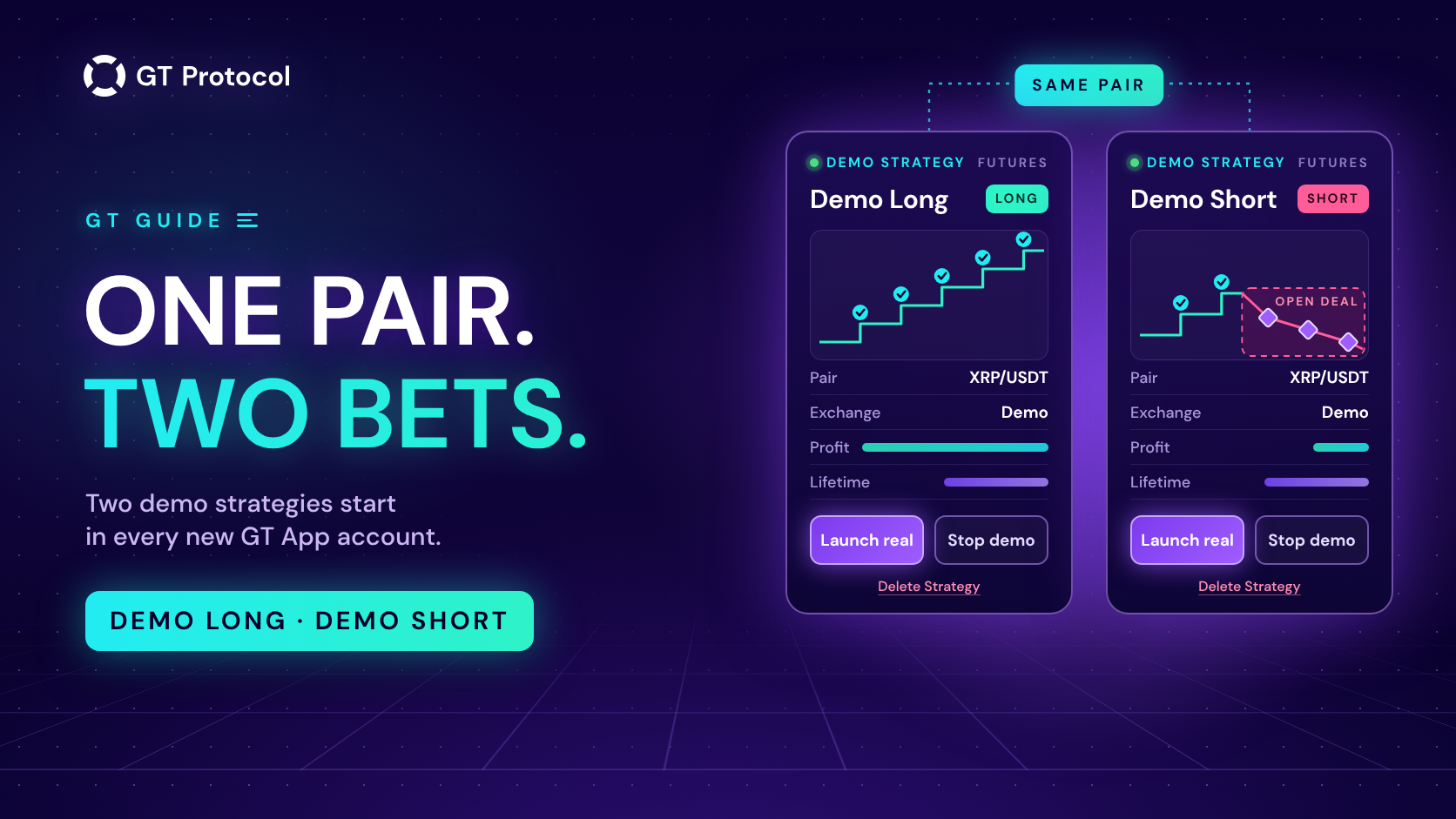
Demo Long and Demo Short are two demo strategies that GT App creates for every new account at sign-up. They trade the same futures pair with virtual money, one betting on a rise and the other on a fall, and each opens its first deal at once. They show a working strategy before you build your own.
This guide explains how the two are set up, why the two often show opposite results at the same moment, what a demo result can’t tell you, and what you can do with them: leave them running, stop them, change them, delete them or take one live. It describes the app as it works at the end of September 2026; screens may change as we add features.
Table of contents
- What are Demo Long and Demo Short?
- Why does my account have strategies I didn’t create?
- How are the two demo strategies set up?
- Why do the two show opposite results?
- How do you read a demo strategy card?
- What can’t a demo result tell you?
- What can you do with Demo Long and Demo Short?
- What happens when you press Launch real?
- How do you stop their notifications?
- Frequently asked questions
What are Demo Long and Demo Short?
Demo Long and Demo Short are ordinary GT App strategies with two differences: they trade in demo, and the platform made them for you. Demo is paper trading. The strategy follows live prices and runs its deals by its own rules, but its orders are simulated and its balance is virtual, so nothing reaches an exchange and none of your money is at risk.
Both strategies trade one futures pair against USDT. The pair is picked at random at sign-up from a short list of large altcoins, XRP/USDT or BNB/USDT for example, and the two get the same one. Demo Long buys, so a rising price moves in its favour. Demo Short sells, so a falling price does. Both are launched straight away and open their first deal at market price, so there is something to watch from the first minute. Paper Trading Your First Bot covers demo mode in general; this guide is about these two strategies.
Why does my account have strategies I didn’t create?
GT App creates the pair automatically when you sign up in the app, by email or with a social login. It is a working example: the quickest way to see what a strategy card, a deal, a take profit and a safety order look like is to have a strategy running in front of you. Accounts created from our Backtest site don’t get the pair.
Two things follow from that. They cost nothing: demo strategies run on any plan, including no plan at all, and a membership is only needed to trade real money. And they are not a recommendation: the pair was picked at random, and the settings are a sample of how a strategy can be built, not advice on what to trade or how.
How are the two demo strategies set up?
Open either one from My Strategies (Trading in the menu) and its settings form shows exactly what it does. At the time of writing the two are identical except for the direction:
| Setting | Both strategies |
|---|---|
| Market | Futures, demo |
| Direction | Long for Demo Long, short for Demo Short |
| Entry | First deal at once, then a Bollinger Bands signal on the 3-minute chart |
| Take profit | 0.45% |
| Safety orders | Four, each larger and further away than the one before |
| Stop loss | 40% |
| Leverage | 20x |
| Balance | Virtual |
A short timeframe and a small take profit make for frequent deals. On a 3-minute chart signals come often, and a 0.45% target sits close to the entry, so deals open and close often, sometimes several times a day. Safety orders add to the position when the price moves against it, and each one moves the average entry price, and the take profit with it, toward the current price; Safety Orders: How to Set Your First DCA Levels Correctly explains the mechanics. A stop loss doesn’t stop these strategies: after one, the next deal opens on the next signal.
Why do the two show opposite results?
They bet against each other on the same pair. Whatever the price does, it goes the right way for one of them and the wrong way for the other.
The strategy on the right side of the move reaches its take profit, closes the deal and waits for the next signal. If the move continues, that can repeat, and each deal closed this way adds a small amount to the Profit on its card. The strategy on the wrong side fills its safety orders as the price keeps going, then waits in an open deal until the price comes back far enough to reach its new, closer take profit. If the move carries on instead, the deal ends at the stop loss.
Two things are easy to miss here:
- Profit counts closed deals only. The loss of the open deal appears on the strategy page, as unrealized profit in Deal details, not on the card. A card with a run of closed gains can have an open deal deep in the red behind it. How to Manage an Active Deal shows where to look.
- One stop loss can outweigh many take profits. The take profit is 0.45% away and the stop loss 40%, and by the time the price has travelled that far every safety order has filled, so the position is many times its starting size. A long run of small wins followed by one large loss is the normal shape of this kind of strategy, not a malfunction. Win Rate vs Average Profit per Trade explains why a high share of winning deals says little on its own.
Watching the pair for a few days is the lesson the demo is there to teach: the same settings on the same market end up with opposite results, and the only difference is the direction.
How do you read a demo strategy card?
On My Strategies, demo strategies have their own card, marked Demo Strategy at the top. From top to bottom it shows:
- the name, the market (FUTURES) and the direction (Long or Short), with a green dot while the strategy is running;
- APY with a small chart;
- the pair, the exchange (Demo for every demo strategy), Profit in USDT and Lifetime in days;
- Launch real and Stop demo (Launch demo once it is stopped), with Delete Strategy below them.
Read APY with care. It stretches the result of recent deals over a whole year, so on a strategy that is days old it says little and is not a forecast. Profit, the list of closed deals and the open deal on the strategy page tell you more. Clicking the card opens that page, with the chart, Deal status, Deal details, the settings form and the trading log.
What can’t a demo result tell you?
A demo shows how a strategy’s rules behave on live prices. It doesn’t show how the same strategy would do on an exchange, because the parts that make real trading harder are left out:
| What | In demo | Real account |
|---|---|---|
| Orders | Simulated at the latest price, without an order book | Placed on the exchange; the fill depends on the order book |
| Fees | A fee at the taker rate on every fill | The exchange’s own fee for each order |
| Funding | Not charged | Paid or received every few hours on futures |
| Liquidation | Doesn’t happen | Possible, depending on leverage, margin and balance |
| Money | Virtual | Yours |
Leverage deserves a note of its own. In demo it doesn’t change the result: nothing gets liquidated, so a losing deal runs all the way to its stop loss. On a real futures account the same position can be closed by liquidation first, and How to avoid liquidation explains what moves the liquidation price. Backtesting vs Paper Trading compares demo with the other test you can run before trading real money.
What can you do with Demo Long and Demo Short?
You have five options, from doing nothing to going live:
- Leave them running. They cost nothing and trade only virtual money. Their notifications are the one side effect, covered below.
- Stop them. Stop demo on the card stops new deals. An open deal stays open until it reaches its take profit or stop loss; to end it now, open the strategy and press Close Deal, which closes a demo deal at the current price.
- Change them. A demo strategy has the same settings form as any other. A new take profit or stop loss applies to the open deal at once; order sizes, safety orders and leverage change from the next deal.
- Delete them. A strategy with an open deal can’t be deleted, so press Stop demo, then Close Deal on the strategy page, then Delete Strategy. The pair is created once, at sign-up, and doesn’t come back.
- Take one live with Launch real, described in the next section.
To test an idea of your own, press Create Demo Strategy on My Strategies. It opens the strategy builder, where you can check the settings on history first and then run them in demo; Backtest and Launch a Futures Strategy in One Screen walks through it.
What happens when you press Launch real?
Launch real turns a demo into a real futures strategy on your exchange account. What happens next depends on your account:
- Without a membership plan, the button takes you to Membership: trading real money needs a plan.
- With a plan but no suitable exchange account, the app asks you to connect one. The demo pair trades Binance futures, so it needs a connected Binance account with futures trading enabled. If you have several, you pick one.
- With both, it copies the demo’s current settings, including the pair, direction, order sizes, take profit, safety orders, stop loss and leverage, into a new real strategy on that account and launches it. The real strategy waits for its own entry signal before its first deal. The demo is then stopped, its deal is closed and the demo is deleted, so the real strategy takes its place in My Strategies.
If the account can’t take the strategy, the app shows an error and the demo stays as it was.
Because Launch real copies whatever the demo has at that moment, set the demo up for real money first. Check the order sizes against your balance, and the leverage and stop loss against the loss you are ready to take. Order sizes are position sizes in USDT, and leverage decides how much of your balance the exchange holds as margin for them, which is why higher leverage brings the liquidation price closer.
How do you stop their notifications?
Demo deals send the same notifications as real ones: a deal started, orders placed and filled, a take profit executed, a deal completed. They appear in the app and, if you have connected the AI trading agent, in Telegram. Two controls deal with the noise:
- Stopping a demo and closing its open deal stops its notifications for good. Deleting it does the same.
- In Profile, turning off Send All notifications keeps Telegram to the main events of every strategy, such as a deal started, a take profit executed and a deal completed. It applies to your real strategies too.
Frequently asked questions
Do Demo Long and Demo Short use real money?
No. They trade a virtual balance. No order reaches an exchange, and their profit and loss are simulated.
Do I need a membership for them?
No. Demo strategies run on any plan, including none. A plan is needed to trade real money, including when you take a demo live with Launch real.
Does demo profit count toward my plan’s profit limit?
No. Only real deals count toward a plan’s profit limit.
Why don’t I have Demo Long and Demo Short?
Either they were deleted or your account was created from our Backtest site. The platform creates them only once, at sign-up in the app. Create Demo Strategy on My Strategies gives you a demo strategy with settings of your own.
Why did my demo lose a large amount in one deal?
Most likely the deal reached its stop loss. The take profit is small and the stop loss far away, and by then all safety orders have filled, so one losing deal can erase many small gains. The trading log on the strategy page shows how the deal ended.
Why do both strategies trade the same pair?
So you can watch both directions on one market at the same time. The pair is picked at random at sign-up and isn’t a recommendation.
Where to start
Open My Strategies in GT App, click Demo Long or Demo Short, and compare the Profit on its card with the open deal in Deal details. When you want to try settings of your own, press Create Demo Strategy.
This article is published by GT Research for information. It describes how demo strategies work in GT App and is not financial advice. Demo results are simulated: they leave out the order book, funding and liquidation, and they don’t predict results on a real account. Trading digital assets carries a risk of losing some or all of the funds committed. GT Protocol provides software, not financial, investment, tax or legal advice. GT App is not available in every jurisdiction; the Terms of Service list the restrictions.