
How to Set Up a Hyperliquid Trading Bot, Step by Step
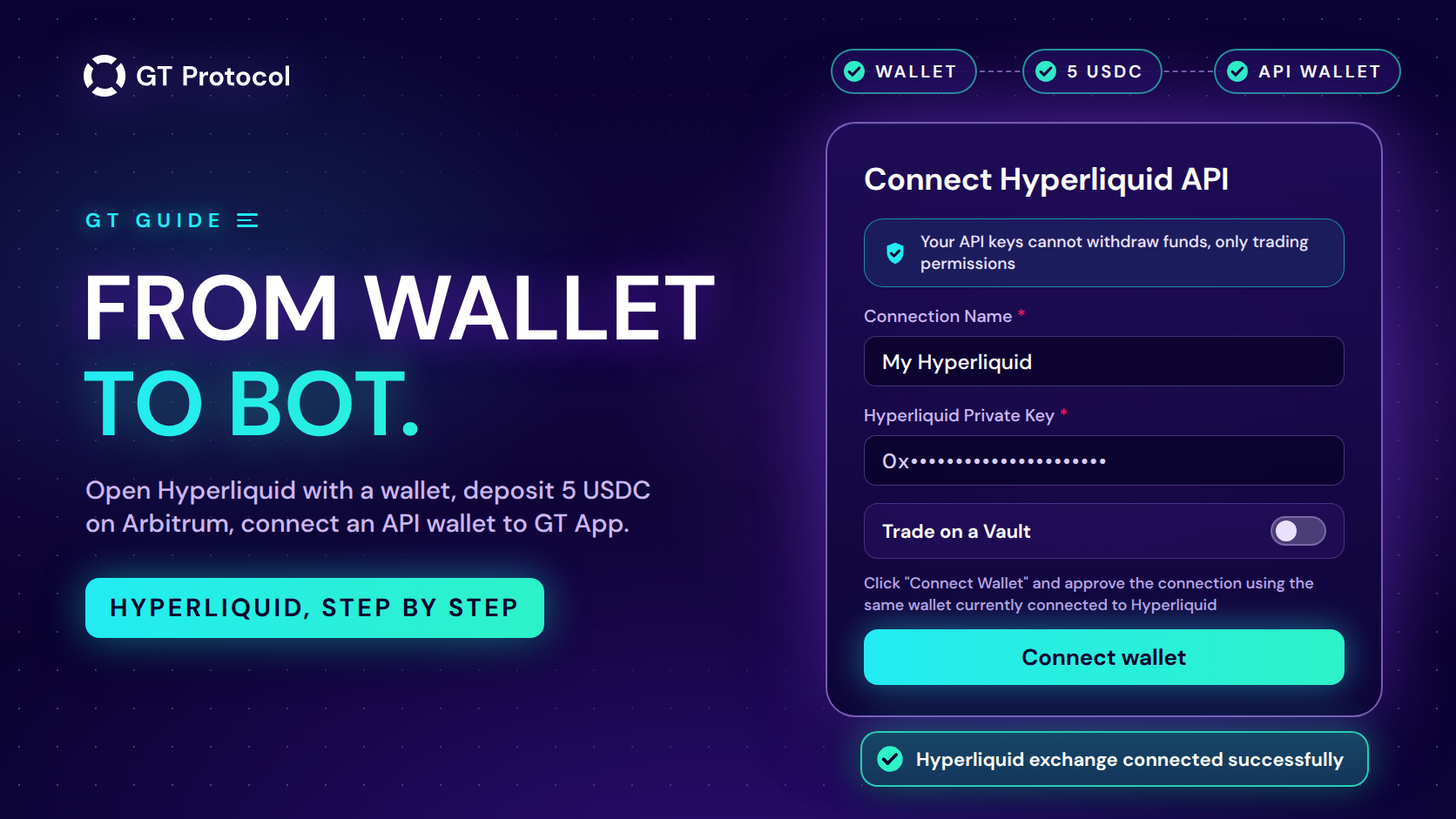
A trading bot on Hyperliquid in GT App needs four things in place: a Hyperliquid account opened with a browser wallet, at least 5 USDC deposited from the Arbitrum network, an API wallet that can place orders but can’t withdraw, and that API wallet connected to GT App. Then you test a strategy in demo and launch it live.
This guide follows that order, with the button names on both sides and the messages you may run into. It describes Hyperliquid and GT App as of October 2026.
Table of contents
- What do you need before you start?
- How do you open a Hyperliquid account?
- How do you deposit USDC to Hyperliquid?
- How do you create an API wallet on Hyperliquid?
- How do you connect Hyperliquid to GT App?
- How do you launch your first bot on Hyperliquid?
- What works differently on Hyperliquid?
- What can go wrong, and how do you fix it?
- How do you replace the API wallet before it expires?
- What if you lead a Hyperliquid vault?
- Frequently asked questions
What do you need before you start?
Three of the four things come from outside GT App:
| What you need | What it is for |
|---|---|
| A browser wallet, such as MetaMask | Opens your Hyperliquid account and confirms the connection in GT App |
| At least 5 USDC on Arbitrum | Your first deposit to Hyperliquid |
| A little ETH on Arbitrum | Gas for the deposit transaction |
| A GT App account | Demo strategies right away, real trading with a plan |
Use one wallet from start to finish: the wallet that opens the Hyperliquid account also authorizes the API wallet and confirms the connection in GT App. A computer with a wallet extension in the browser is the simplest setup.
In GT App, a demo strategy needs neither an exchange connection nor a plan. Real-money trading needs both: the Hyperliquid connection described below and a paid plan. Without a plan you can still connect one exchange account, and it waits there until a plan lets strategies trade on it. The plans are listed in How to Buy a GT App Membership in Telegram.
How do you open a Hyperliquid account?
On Hyperliquid an account is a wallet address. GT App’s connection page asks you to log in to Hyperliquid with a wallet, not with email: in the last step that same wallet confirms the connection, and an email login gives you no browser wallet to confirm it with.
- Open Hyperliquid through our sign-up link. It is the same link GT App gives under Don’t have a Hyperliquid account? on its connection page.
- Click Connect and choose your wallet. Skip the email option.
- Check that the address bar shows app.hyperliquid.xyz, then approve the connection in your wallet.
- Accept the terms when Hyperliquid asks.
- Click Enable Trading and sign the request in your wallet.
GT App lists Hyperliquid on its exchange page with the note no KYC required. If you already have a Hyperliquid account opened with email, the straightforward route is a new account opened with a wallet.
How do you deposit USDC to Hyperliquid?
GT App’s connection page names one route for the deposit: USDC on the Arbitrum network, sent from the same wallet. If your USDC sits on an exchange, withdraw it to your wallet over Arbitrum first, along with a little ETH on Arbitrum for gas.
- On Hyperliquid, click Deposit.
- Choose USDC on Arbitrum and enter the amount.
- Confirm the transaction in your wallet.
Send at least 5 USDC. Hyperliquid’s documentation is blunt about the minimum: a smaller deposit is not credited and is lost. It is also the amount GT App’s connection page asks for, and Hyperliquid lets you create an API wallet only once a deposit of at least 5 USDC has arrived. The balance then shows on Hyperliquid’s Portfolio page.
How do you create an API wallet on Hyperliquid?
An API wallet, which Hyperliquid also calls an agent wallet, is a separate key that signs orders for your account. Hyperliquid’s API page states its limits in one line: API wallets can perform actions on behalf of an account without having withdrawal permissions. That is the key GT App works with. It can place and cancel orders on your Hyperliquid account, and it can’t move your funds out.
- On Hyperliquid, open More, then API (the API page).
- Enter a name for the API wallet, for example GT APP.
- In the Address of API Wallet field, click Generate.
- Click Authorize API Wallet and set Valid Days. Choose MAX, which is 180 days, the longest Hyperliquid allows.
- Copy the Private Key, shown in red, and keep it somewhere safe.
- Click Authorize and approve the request in your wallet.
Three things to keep in mind:
- The private key is a secret. Anyone who has it can trade your Hyperliquid account, even though they can’t withdraw. Paste it only into GT App’s connection form.
- Keep the name for GT App alone. If you later authorize another API wallet under the same name, Hyperliquid replaces the old one, and the key GT App holds stops working.
- Note the date. The API page lists each API wallet with its Valid Until date. After that date the key stops working, so plan to replace it a few days earlier.
How do you connect Hyperliquid to GT App?
In GT App, open Account, then Exchange accounts. New accounts also get there through the Connect Exchange step at the top of the app. On the Connect exchange account page, click Connect Hyperliquid.
The Connect Hyperliquid API page also lists the Hyperliquid steps in short and has a video guide. Fill it in:
- Connection Name. Any name you will recognise, such as My Hyperliquid. It has to differ from the names of your other connections.
- Hyperliquid Private Key. Paste the private key of the API wallet. It starts with 0x and is 66 characters long; the API wallet’s address is shorter and isn’t accepted here.
- Trade on a Vault. Leave it off for your own account. It is for vault leaders.
- Click Connect wallet and choose the wallet you used on Hyperliquid.
- If the wallet is on another network, it asks to switch to Arbitrum. Approve the switch.
- The wallet asks you to sign a request from GT App. Sign it: without this signature GT App doesn’t save the connection.
When it works, GT App shows Hyperliquid exchange connected successfully and takes you back to the exchange page. The connection appears under Connected Exchanges as your connection name followed by ”/ Hyperliquid”, with its Spot and Futures balances. If you came to the page from the strategy builder, GT App takes you straight back there instead, with your strategy as you left it.
The banner at the top of the connection page sums up the arrangement: Your API keys cannot withdraw funds, only trading permissions. Your USDC stays on your Hyperliquid account the whole time.
How do you launch your first bot on Hyperliquid?
Start in demo. A demo strategy follows live prices and simulates its orders, so nothing reaches Hyperliquid, and it needs neither the connection nor a plan. You see how your rules behave before money is involved.
- In My Strategies, click Create Futures Strategy. Without a plan, the screen it opens is titled Create Demo Strategy.
- In Market Setup, switch the venue from Binance to Hyperliquid. The pair list switches to Hyperliquid’s, quoted in USDC, with BTC, ETH and SOL as quick picks.
- Set the rules, run the backtest and launch. Without a plan the button reads Launch trading and starts the strategy in demo.
What each setting on that screen does is covered in Backtest and Launch a Futures Strategy in One Screen.
Once you have a plan and the Hyperliquid connection, the same screen launches the strategy live on Hyperliquid, and its button reads Launch Real. With a plan but no Hyperliquid connection yet, it reads Connect Exchange: your strategy is kept as a demo, with its settings, while you connect. Accounts opened before late August 2026 see the older buttons on this screen: Run Demo next to Review and Start Trading or Connect exchange.
Spot strategies use the classic form. Click Create Spot Strategy in My Strategies and choose your Hyperliquid connection in the Connect exchange field; the pair list then comes from Hyperliquid.
What works differently on Hyperliquid?
Most of GT App works the same on both exchanges. The differences you will notice:
| What | Binance | Hyperliquid |
|---|---|---|
| Account | Email sign-up with identity checks | A wallet, no KYC required |
| What you paste | API key and secret key | API wallet private key |
| Futures | Enabled on the account and on the key | Perpetuals work on every connection |
| Pairs | Quoted in USDT | Quoted in USDC |
| Timeframes | 1 minute to 1 day | The same, without 6 hours |
One more has no Binance counterpart: the API wallet expires after 180 days at most, so replacing it is a regular task.
What can go wrong, and how do you fix it?
The messages you may see, and what they mean:
| What you see | Why | What to do |
|---|---|---|
| Please enter valid private key | The field takes the private key: 0x and 64 more characters | Paste the key you copied on Hyperliquid, not the API wallet address |
| Wallet Not Linked to Hyperliquid | The wallet you connected has no Hyperliquid account, or no deposit yet | Connect the wallet you use on Hyperliquid, or deposit at least 5 USDC first |
| Wallet Not Linked, asking you to switch to Arbitrum | Your wallet is on another network | Switch the wallet to Arbitrum; the page reloads when you close the message, so fill in the form again |
| A message asking you to connect the wallet and approve | A request in your wallet was rejected or closed | Click Connect wallet again and confirm each request |
| This wallet is already linked to an API key | A connection with this name exists, or your plan’s connection limit is reached | Use a new name, check Exchange accounts, or check your plan |
| Months later, the strategy can’t place orders | The API wallet’s Valid Until date has passed | Replace the API wallet, as described next |
How do you replace the API wallet before it expires?
A few days before the Valid Until date on Hyperliquid’s API page:
- On Hyperliquid, authorize a new API wallet, as described above, and copy its private key.
- In GT App, add it as a new connection with the same wallet, under a new connection name.
- Open each strategy that uses the old connection and choose the new one in the Connect exchange field. GT App locks this field while a strategy has an open deal, so do it between deals.
- Delete the old connection in Exchange accounts.
If your plan has no room for a second connection, delete the old one first, at a moment when none of its deals is open: GT App refuses to delete a connection with an open deal. Deleting it stops the strategies attached to it. Your own strategies keep their settings and wait for you to choose the new connection in each of them; copied strategies and strategies made from presets are removed together with the connection. If a deal is open and you don’t want to wait for it, How to Manage an Active Deal in GT App shows how to close it.
What if you lead a Hyperliquid vault?
A vault leader connects the same way, on the same page. Turn on Trade on a Vault and enter the Vault Address, 0x followed by 40 characters. The private key is then an API wallet of the vault leader’s account. Strategies on this connection trade the vault’s funds rather than your personal balance, and one vault can be connected to only one GT App account. How automation works on a vault is explained in our article on Hyperliquid vaults.
Frequently asked questions
Does GT App hold my funds on Hyperliquid?
No. Your USDC stays on your own Hyperliquid account. GT App gets an API wallet, which Hyperliquid allows to place and cancel orders but not to withdraw.
Can I use a Hyperliquid account opened with email?
GT App’s connection page asks for a wallet login, not email, because the last step is confirmed by the wallet that owns the Hyperliquid account. The straightforward route is a new Hyperliquid account opened with a browser wallet.
How much do I need to deposit?
At least 5 USDC on Arbitrum: Hyperliquid doesn’t credit smaller deposits, and it is the minimum for creating an API wallet. You also need a little ETH on Arbitrum for gas. What a strategy needs on top of that depends on its settings; the strategy builder shows how much of your capital a configuration commits.
How long does the API wallet work?
Up to 180 days, if you choose MAX when you authorize it. Hyperliquid shows the end date in the Valid Until column of its API page. Replace the key before that date.
Can I try Hyperliquid in GT App before connecting it?
Yes. A demo strategy on Hyperliquid pairs needs neither the connection nor a plan. Choose Hyperliquid in Market Setup of the strategy builder and launch it in demo.
Can several strategies share one Hyperliquid connection?
Yes, within your plan’s limits, with one rule for futures. A futures strategy in Cross margin takes the connection for itself, while several futures strategies in Isolated margin can share it, each on its own pair. Spot strategies can share a connection too.
Is this article investment advice?
No. It is published by GT Research for information. GT Protocol provides software, not financial, investment, tax or legal advice. Settings mentioned here are examples of how the tool works, not recommendations, and every trading decision is the reader’s own.
Where to start
Open Hyperliquid through our sign-up link with your wallet, deposit at least 5 USDC from Arbitrum and authorize an API wallet for 180 days. Then connect it on the Connect Hyperliquid API page in GT App and launch your first Hyperliquid strategy in demo. If you are new to GT App, Four Steps from Sign-Up to Real-Money Trading in GT App shows where the exchange connection fits in the rest of the setup.
This article is published by GT Research for information. It describes how to connect Hyperliquid to GT App and is not financial advice. Trading digital assets, and perpetual futures in particular, carries a risk of losing some or all of the funds committed. GT Protocol provides software, not financial, investment, tax or legal advice. Hyperliquid is a third-party platform with its own terms, and GT App is not available in every jurisdiction; the Terms of Service list the restrictions.