
AI Agent in a Mini App: Connect Telegram and Try the New Feature
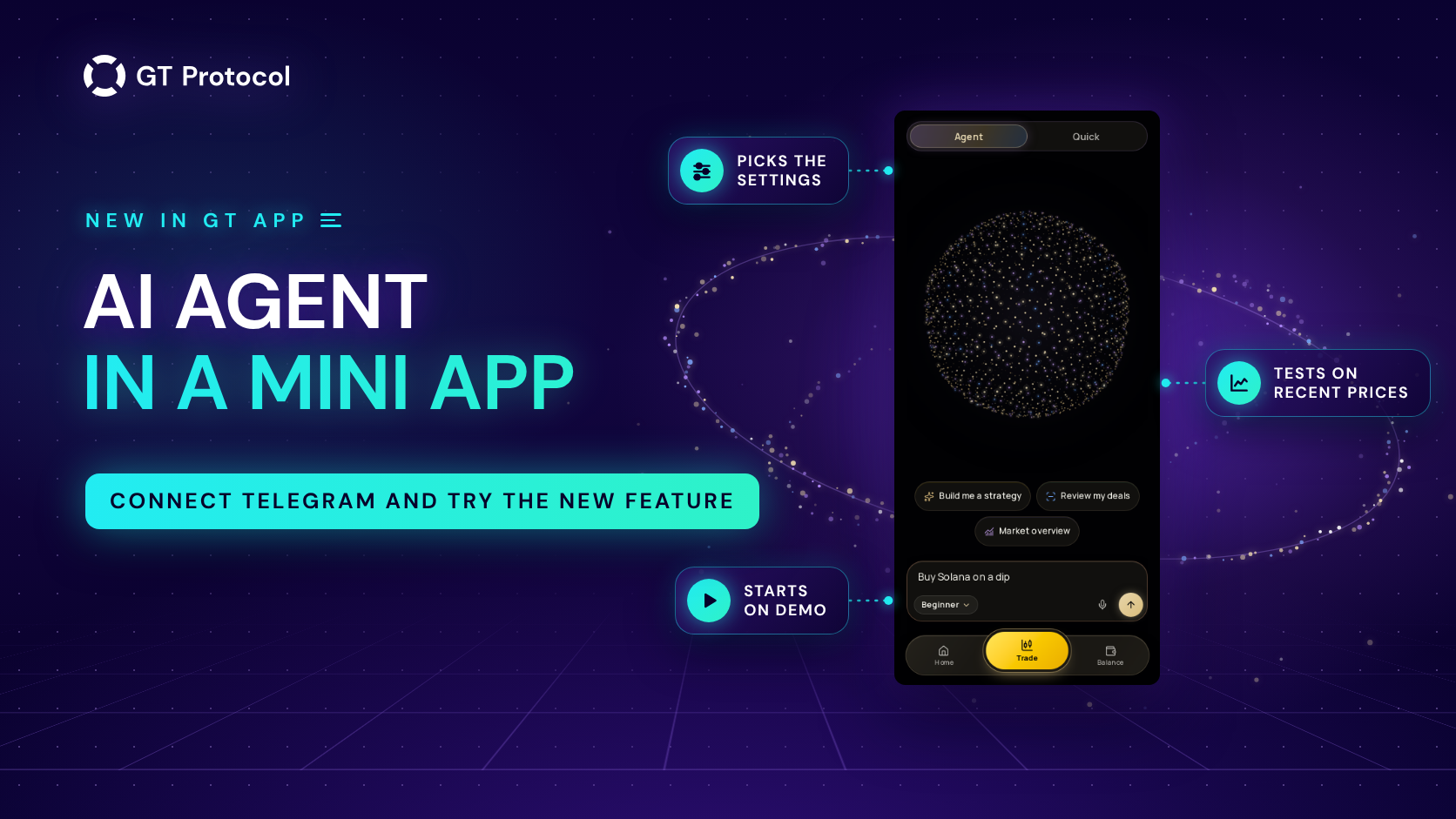
GT App now opens inside Telegram as the GT Agent mini app, built around an AI trading agent that sets up strategies for you. In Beginner mode, which is on by default, you name a coin, and the agent picks the settings, tests them on recent prices and starts the strategy on Demo, with virtual money.
This guide is for people who have never set up a trading bot. It shows how to open the mini app from GT App and @gt_agentbot, what to type, how to read the card the agent shows you, and when to move from Demo to real money. It describes the mini app as it works today; screens may change as we add features.
Table of contents
- What is the GT Agent mini app?
- How do you open the mini app?
- What does Beginner mode do for you?
- What can you ask the agent in plain words?
- How do you read the strategy card?
- Beginner or Pro: which mode should you use?
- How do you move from Demo to real money?
- What else is in the mini app?
- Frequently asked questions
What is the GT Agent mini app?
The GT Agent mini app is GT App in a window that opens on top of your chat with our AI trading agent in Telegram. It works with the GT App account you already have: the same strategies, the same connected exchanges, the same plan. There are three tabs at the bottom. Trade is where the agent lives: you type or say what you want, and it builds a strategy, tests it and starts it, or goes through your deals and sums up the market. Home shows your total balance across connected exchanges, the result of the deals closed in the last 24 hours and every strategy you have, running or stopped. Balance shows your exchange accounts and your membership. The chat works in English, Russian, Chinese, Spanish and Arabic, and the agent answers in the language you write in. You can also talk to it: tap the microphone, speak, then tap the sphere to send.
The chat with @gt_agentbot keeps working as before, with its buttons, commands and trade notifications; our guide to the AI trading agent in Telegram covers it. The mini app puts screens on top of it, so you see your balance, your strategies and the agent’s cards with buttons instead of remembering commands.
How do you open the mini app?
The mini app opens from the chat with @gt_agentbot, and it needs your Telegram connected to a GT App account first. If you already connected the agent for trade notifications, you are set: the chat shows an Agent button to the left of the message field. If not, connect it from GT App. Open Profile, find the AI Trading Agent block and tap Activate AI. Telegram opens @gt_agentbot; tap Start, and the agent confirms the connection with a welcome message. The Agent button then appears in the chat, and one tap opens the mini app on Home. You can also send /app in the chat and tap Open. There is no extra sign-in: the mini app opens with the GT App account you connected, so everything you start in Telegram also shows up in GT App, and the other way round.
Step by step:
- Sign in to GT App, open Profile and tap Activate AI in the AI Trading Agent block.
- Telegram opens @gt_agentbot. Tap Start.
- In the chat, tap Agent next to the message field, or send /app and tap Open.
- The mini app opens on Home. Tap Trade to talk to the agent.
To disconnect, tap Deactivate AI in Profile or send /logout in the chat.
What does Beginner mode do for you?
Beginner mode is for people who don’t want to learn every field of a trading bot before they start. It is on by default, and the mode sheet sums it up in one line: “I pick the settings and start on Demo.” You bring the idea and the coin. The agent does the setup: it builds a spot strategy with no leverage, sizes every order so the whole strategy fits your budget, and picks the take profit and how far apart any extra buy orders sit. Then it tests those settings on the last month of prices, or the last three months for a buy-the-dip strategy, and keeps the version that did best. Then it starts the strategy on Demo straight away, without asking you to press anything. Demo follows live prices, but its orders are simulated and its balance is virtual, so nothing reaches an exchange and none of your money is at risk.
A few details that help:
- Name an amount if you have one in mind. “Buy Bitcoin with $200” keeps the whole strategy, extra buys included, inside $200. Without an amount, the agent sizes it for you.
- Forgot the coin? The agent asks which one before it builds anything.
- Asking for something specific works too. Name futures, a take profit or a stop loss, and the agent keeps what you named and picks the rest.
- If the test went badly, the card says so in a short note. The strategy still starts on Demo, so you can watch it without risk, and you can ask for a different idea.
- Cleaning up is one sentence. “Stop all my demo bots” or “Delete all my demo bots” runs at once, with no confirmation buttons.
- Words never move real money. In both modes, a strategy on a real exchange starts only when you tap the button with your account name.
What can you ask the agent in plain words?
You don’t need trading terms to get a strategy. In Beginner mode the agent recognises three everyday ideas and turns each one into a ready strategy, and it can choose between them for you. “Buy Bitcoin and sell higher” becomes a strategy that buys now and sells if the price rises by the take profit, with a few extra buys in reserve in case the price dips first. “Buy Ethereum in a ladder” spreads your budget over a ladder of buy orders below the current price, so the average entry price goes down if the market falls. “Buy Solana on a dip” waits for a sharp drop from a recent high, buys after it, and sells if the price then rises by the take profit. The same phrases work with other coins. If you can’t choose, ask the agent to pick a strategy for you: it tests all three ideas on your coin and keeps the one that did best.
| You say | The agent builds | Use it to |
|---|---|---|
| “Buy Bitcoin and sell higher” | A strategy that buys now and sells at the take profit, with a few extra buys in reserve | Start simple |
| “Buy Ethereum in a ladder” | A strategy that buys now and keeps a ladder of buy orders lower down | Bring the average price down if the market dips |
| “Buy Solana on a dip” | A Dip entry strategy that buys only after a sharp drop from a recent high | Avoid buying right after a jump |
| “Pick a strategy for me on ETH” | Tests all three ideas on the coin and keeps the one that did best in the test | Let the agent choose |
| “Delete all my demo bots” | Deletes your Demo strategies at once | Start over |
You can type these or say them. Above the message field there are three shortcuts too: Build me a strategy, Review my deals and Market overview. Each idea has its own guide for when you want to know more: Immediate Start for buying now, safety orders for the ladder, and Dip entry for buying on a drop.
How do you read the strategy card?
Every strategy the agent builds arrives as a card, a short summary of what it is about to run or has just started. The title names the coin and the trading signal the strategy uses. Under it you see the profit or loss the strategy made in the test, the period the test covered and the win rate, which is the share of test deals that closed in profit. Four tiles show the settings that matter most: the trading signal, the leverage (for a spot strategy, the size of the first order instead), the take profit and the stop loss. A note at the bottom says what the numbers are: “Backtest of exactly these settings · past results don’t guarantee future ones”. If the strategy didn’t pass the test, a line on the card says so. In Beginner mode the card arrives with the Demo strategy already running, so the next step is simply to watch it.
In Pro mode the card ends with buttons instead: Launch demo and Launch on followed by the name of your exchange account. Nothing starts until you tap one. To read a test result in more depth, see How to Read a Backtest Report.
Beginner or Pro: which mode should you use?
Beginner and Pro differ in who decides the settings and when a strategy starts. In Beginner mode the agent decides and starts on Demo right away. In Pro mode it shows a draft first and asks what you want to change, and nothing starts until you tap Launch demo or the button of your exchange account. Pro also asks before it stops, closes or deletes a Demo strategy, where Beginner simply does it. One rule is the same in both modes: a strategy on a real exchange starts only after your tap, and the agent asks before it acts on a strategy that trades real money. Switching takes one tap. The chip under the message field shows the current mode, and tapping it opens the choice between the two, each with a line on what it does.
| Mode | Beginner | Pro |
|---|---|---|
| Settings | The agent picks them | You see a draft and decide |
| Demo launch | Starts right away | After your tap |
| Stop or delete on Demo | Done at once | Asks first |
| Real exchange | Only after your tap | Only after your tap |
If you’re new, start in Beginner. Switch to Pro when you’d rather look at ideas before anything runs: in Beginner mode every strategy you ask for becomes a running Demo strategy, so asking for ten ideas leaves you with ten Demo strategies to stop later.
How do you move from Demo to real money?
Moving to real money takes three things: a connected exchange, a strategy you have watched on Demo, and one tap. GT App works with Binance and Hyperliquid. Open the Balance tab and tap Connect exchange: GT App opens on the page where you add your exchange account. The mini app reminds you there that API keys connected to GT App can’t withdraw funds, only trade, and your money stays in your own exchange account. Once an exchange is connected, its balance shows on Balance and in the total on Home. To start a strategy with real money, tell the agent to launch it on your exchange, or tap the button with your account name under a card. The agent never starts a real strategy on words alone; it answers with your account’s button, and the strategy starts when you tap it. Running a strategy with real funds also needs a GT App membership; the Balance tab shows your plan.
A sensible order for a first strategy: run it on Demo, watch it close a few deals, ask the agent what happened, and only then repeat it with real money, starting with an amount you can afford to lose. Paper Trading Your First Bot explains what a Demo run can and can’t tell you, and Non-Custodial Trading Bots: Keep Your Keys explains why keys without withdrawal rights matter.
What else is in the mini app?
Home is the screen you see first. Under the total balance is the result of the deals closed in the last 24 hours. It counts your real-money strategies if you have any, and your Demo ones otherwise, labelled as Demo. A small chart shows the running total over the week. My strategies lists everything you have, running strategies first, each with a status: Deal open, Waiting or No deal. A running strategy has a stop button, and a stopped one has a start button. Tap any strategy to ask the agent about it. Below that, My watchlist shows live prices for Bitcoin, Ethereum, Solana, Avalanche and XRP; tap Edit to reorder or remove coins. Share turns your balance into an image card you can post, copy or save, with a “Not financial advice” line on it. Review my deals and Market overview, the shortcuts on the Trade tab, ask the agent to go through your recent deals or sum up the market.
Two places are not ready yet. Deposit on Home and the Quick tab next to Agent both open a “Coming soon” screen for now.
Frequently asked questions
Is the GT Agent mini app free?
Opening the mini app, talking to the agent and running strategies on Demo don’t need a paid plan. Running a strategy with real funds on a connected exchange needs a GT App membership; plans start at $5. The Balance tab shows your current plan, and buying one opens GT App.
Do I need an exchange account to start?
No. Demo strategies trade a virtual balance on live prices, and nothing reaches an exchange, so you can try every idea in this guide before you connect anything. You connect Binance or Hyperliquid only when you want to trade real funds.
Can the agent trade my money without asking?
No. Without your tap the agent starts strategies only on Demo. A strategy on a real exchange starts only when you tap the button with your account name, in both modes, and the agent asks before it acts on a strategy that trades real money. Once you start a real strategy, it opens and closes deals on its own, by its settings, until you stop it: that is what a trading bot does. The one automatic action the agent itself takes on real strategies is Smart Exit, and only where you switched it on. API keys connected to GT App can trade but can’t withdraw.
Why did the agent start a strategy as soon as I asked?
That’s Beginner mode: it builds the strategy and starts it on Demo without a button. To see a draft first, switch to Pro with the chip under the message field. To clean up, ask “Stop all my demo bots” or “Delete all my demo bots”.
Will strategies from the mini app show up in GT App?
Yes. The mini app works with your GT App account, so a strategy you start in Telegram appears in GT App, and the strategies you made in GT App appear in the mini app.
Which languages does the agent understand?
The chat works in English, Russian, Chinese, Spanish and Arabic, by text or by voice, and the agent answers in the language you write in.
Is this article investment advice?
No. It is published by GT Protocol Team for information. GT Protocol provides software, not financial, investment, tax or legal advice. Strategies the agent builds are starting points generated by software, not recommendations, and every trading decision is the reader’s own.
Where to start
Open @gt_agentbot, tap Agent, stay in Beginner mode and type a coin you know, for example “Buy Bitcoin and sell higher”. Watch the Demo strategy for a few days, read its card and ask the agent what happened. Not connected yet? Tap Activate AI in your GT App Profile first.
This article is published by GT Protocol Team for information. It is not financial advice, and nothing here is a prediction or a promise of returns. Strategies the agent builds are generated by software from recent market data; backtests and demo results are simulations and do not predict how a strategy will perform with real funds. Trading digital assets, and futures in particular, carries a risk of losing some or all of the funds committed. GT Protocol provides software, not financial, investment, tax or legal advice. GT App is not available in every jurisdiction; the Terms of Service list the restrictions.